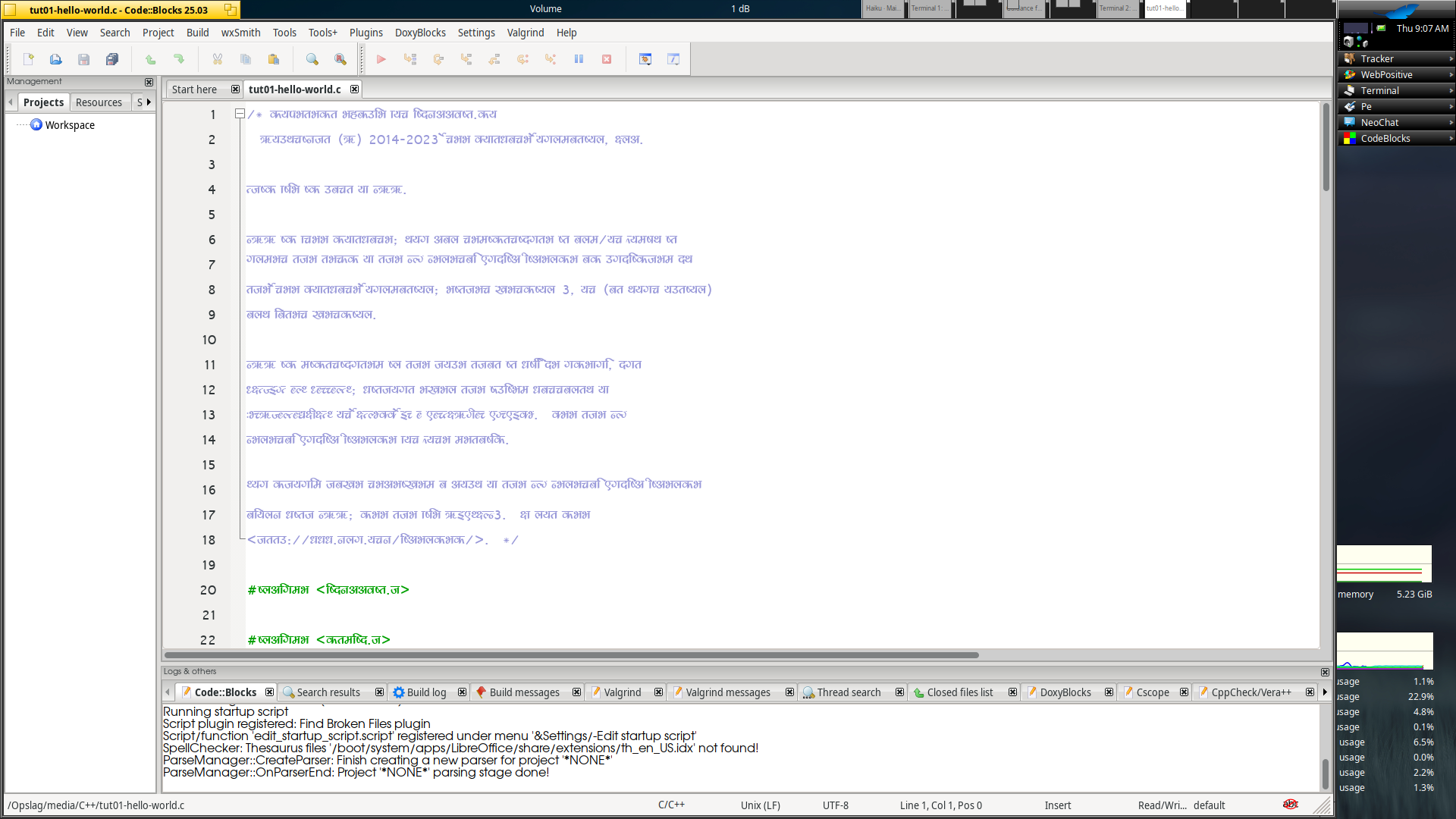
hi san2ban; Haiku does indeed not use harfbuzz for font shaping yet, so if this is required it may look quite bad.
We are in a bit of a pickle here because the current Haiku devs don’t speak a language where this is required so testing it is difficult, there has been some previous work however to integrate harfbuzz, that could be continued
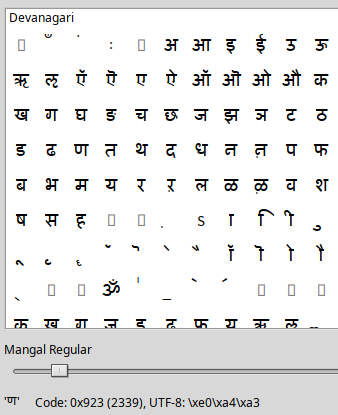
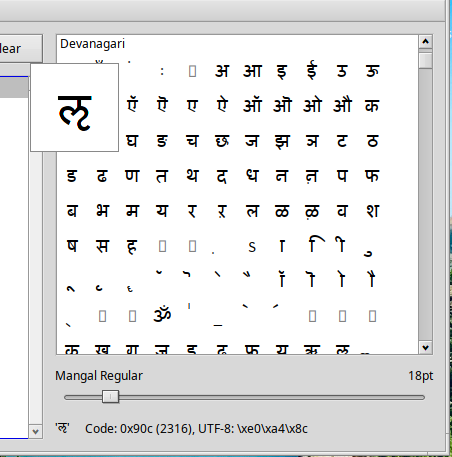
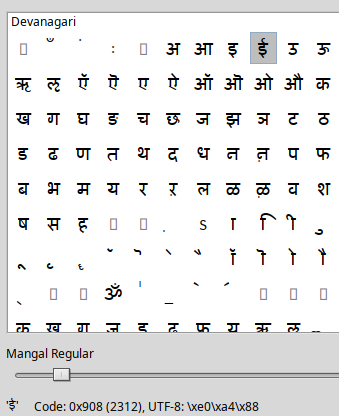
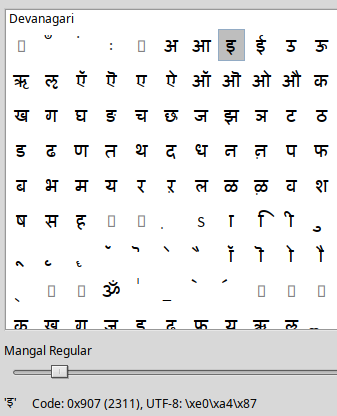
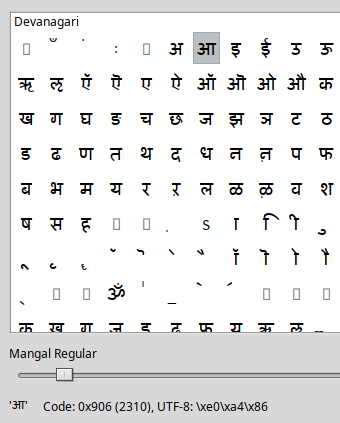
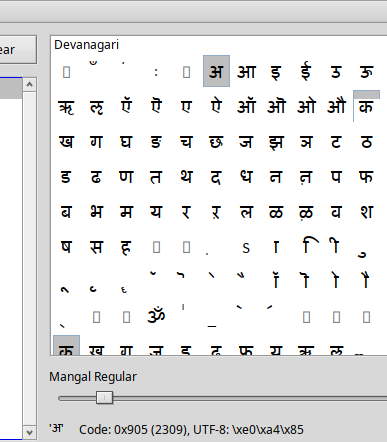
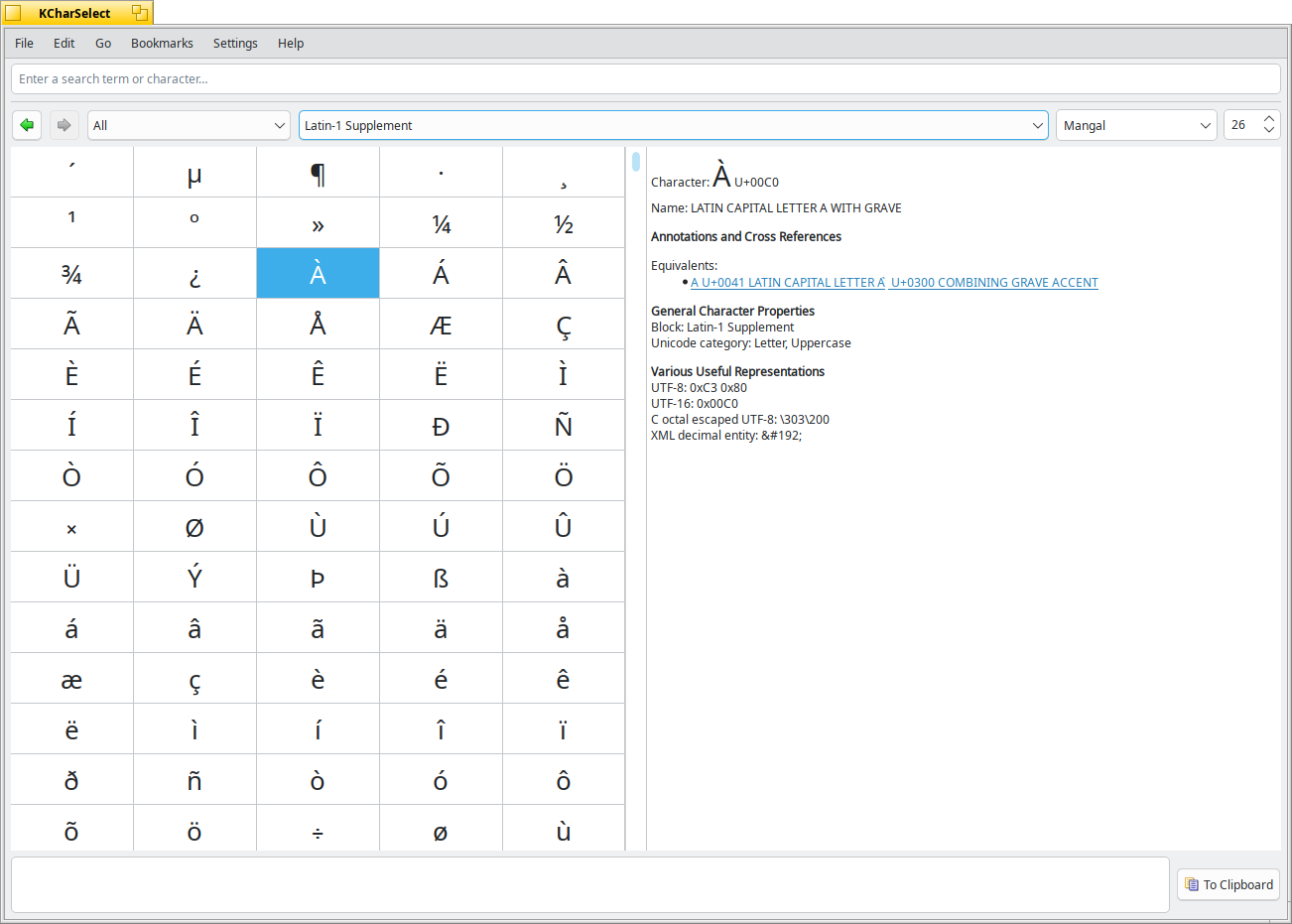
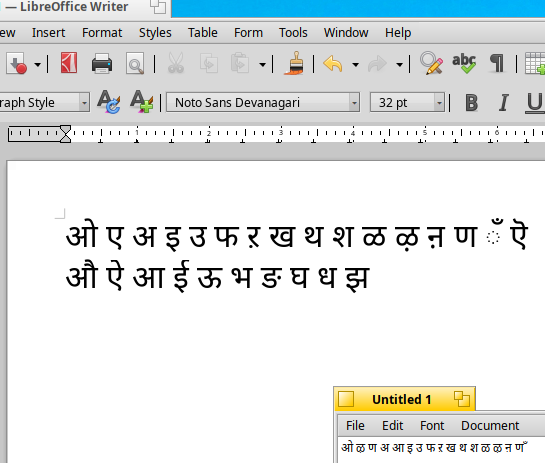
Further to this topics, pl. see the attached screen shot….only the 6 characters in the first row come true as displayed. From the second row, whatever character is shown, when you select it to drag and drop, it changes to another character. If I search through this CharacterMap, by hovering the mouse over the characters shown, whatever character I need will be shown in some other place (upon selection) when de-selected, it will be some other character…Pl. see the comments, character shape in the photo at the bottom where ‘Mangal regular’ is written
I think the Devanagari character is all mixed up except for the first six letters…or it is corrupted….or some bug must be there….believe me, I have checked more than thrice…
Pl. look at the 7th character, 1st in the second row, how it is displayed, and upon selecting it, howit turns into another character
As far as I understand, above which character there is a mouse cursor the code of that character and is displayed. I found another oddity: from the first column (sometimes the second) it is impossible to take a character with the mouse cursor and drop it into StyleEdit, after changing the window size, when that symbol is in another place, then the symbol can be dropped. Of course, it is also possible to copy the character from the context menu. In any case, I would advise you to decompile the layout into a text file via the terminal and edit it, entering the exact character codes, and correcting possible errors that may occur when throwing characters with the mouse cursor. As far as I remember, most of the time problems with throwing characters like this into Keymap app appear at other levels of the keyboard (shift, altgr) and with all kinds of combinatorial characters.
…if you run 32 bit haiku, you can use useful tool for creating keymaps: HexKeysCodeFinder (personaly I used it on BeOS, I hope it is work on 32 bit Haiku, it is opensource app)
Worst of my fears have come true…..I dread this elaborate, laborious work…inputting hex unicode of keys manually for so many keys, with shift, ctrl, dead keys etc
I will try to find if there is a list of these hex unicodes for InScript keyboard, which is the standard for typing Sanskrit, Hindi and a few more Indic languages that use Devanagari script
Thanks for your support….if it has to be done, it will be done….may take time….
XKB symbols file in Linux (in /usr/share/X11/xkb/symbols/in) for indic languages has all codes and keymap variants. As far as I remember, the only difference seems to be the hex code notation in Haiku and XKB. But, I think you’ll figure it out… Good hunting.
I didn’t entirely understand this, but the first two images I understand to refer to your problem of selecting a character, and getting the following character. I tried Noto Devanagari, and it doesn’t seem to have this problem for me. And I was able to add the codes to a keymap using Preferences Keymap. So if you’re interested in knowing where the problem is, exactly, you might try that font instead of Mangal and see if you have the same problems. Since you’re making a keymap for the Devanagari code block, not the font, it doesn’t matter if you use Mangal or Noto to display the codes while you’re doing it.
The subsequent images, don’t know what you’re trying to show. The codes you get look OK.
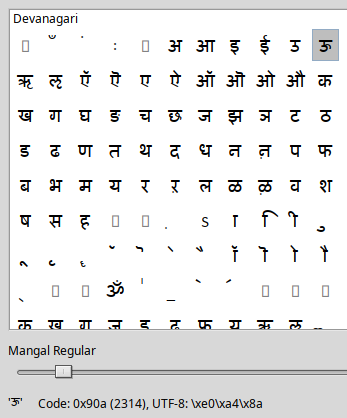
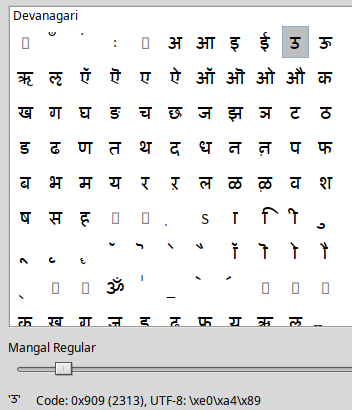
First six screenshots show ok characters…seventh screenshot shows 7th character shifting shape….8 th photo shows what should have been the 7th character
OK, thanks, I think I see that - this seems to be an error displaying the font glyph, that again doesn’t have to be a problem for you. I mean, at the bottom of the display, the code values are correct.
I still see no character changing shape in all those screenshots.
It’s difficult but not impossible. Happens with all characters near the border. When you select a character a bigger view of it is shown. When near the borders, that expands out of the character list view. If you drag in that direction, the character list doesn’t know what you’ve done and no D&D is started. Until someone improves that, just be sure to pass your dragging operation through a visible part of the character list before going out of CharacterMap.
You don’t have to. Even if for whatever reason you don’t want to use the visual way (I had zero problems with it, though I admit I didn’t do a full keyboard nor did I try shifted layers where @damoklas seems to say it’s easier to have problems), you can still copy the UTF-8 code from CharacterMap, paste it in a previously dumped keymap that already has keys needing that kind of codes and when finished find and replace all ‘\x’ → nothing to get rid of the C escapes.
Actually, I made a video, from my mobile, to show live, file size became too large…wanted to email it and open email on laptop and post it…hence the screenshots
First 6 screenshot show that whatever character is selected, is ready at the bottom. Near the comment “Mangal, regular”
7th screen shot shows the selected character….8th screenshot shows what should have been selected, and what is showing as selected….
Anyway, more manual labour awaits me…..thanks to all who have tried to help me
The 7th character, as in screenshot 8, cannot be found (selected) in the entire character map…when the mouse is just hovered upon the characters, at the bottom comment ”Mangal/regular” it will show what is it that will get selected, but this seventh character is not displayed when the mouse is hovered on the characters displayed
Similarly, the character for Sanskrit ‘Ba’ cannot be selected, even though it is displayed..
Editing the keymap file after dumping it appears to be the only option
Do you have this problem with Noto Devanagari? I don’t seem to. Bear in mind that it shouldn’t matter at all, what font you use in CharacterMap and Keymap, as long as it displays something in CharaterMap’s Devanagari code block.
The symbols I provided all have superimposed (combining) diacritics. The problems with them: the rules for applying those diacritics are incorrectly defined or not defined in the fonts themselves, the software does not know how to properly display those composite symbols.
Confirmed the issue with Mangal and Lohit fonts. You don’t even have to go to the devanagari block to suffer it, it’s a font-wide issue. Probably some metrics we don’t expect or some bug in CharacterMap, font rendering or, less probably, the fonts themselves, it happens only at some sizes and seems to be related with the grid position calculations, I hope I can fix it in the weekend. Please use Noto Sans Devanagari, as suggested in other messages. On top of working, it has glyphs for all the characters in the block.
I was half way through when I saw your message in gmail alert…Yes…Noto Sans Devanagari does not have these issues. I have completed my keymap
Mangal is a monospaced font by MS….so, monospaced fonts are better for readability, clarity on printed matter, etc…That was the only reason I kept trying with Mangal
Thanks to all those who guided me, especially michael, damoklas, donn ….
In above posts, some body said there is a global setting in KeyMapSwitcher which will change the keymap in all applications…But, could not find this
Only thing is you should be familiar with the InScript keyboard layout, (my keymap is as per InScript layout) for typing faster
If we had IBUS, it gives a phonetic translation (Optitrans)… so I can just use the English keyboard to get Hindi words
Minor irritants
In StyledEdit, when I have chosen font Noto Sans Devanagari, many times it changesback to NotoSans, displaying square boxes as I type