I want to share a project I’ve been working on recently. Meet SVGear.
SVGear is now available in HaikuDepot.
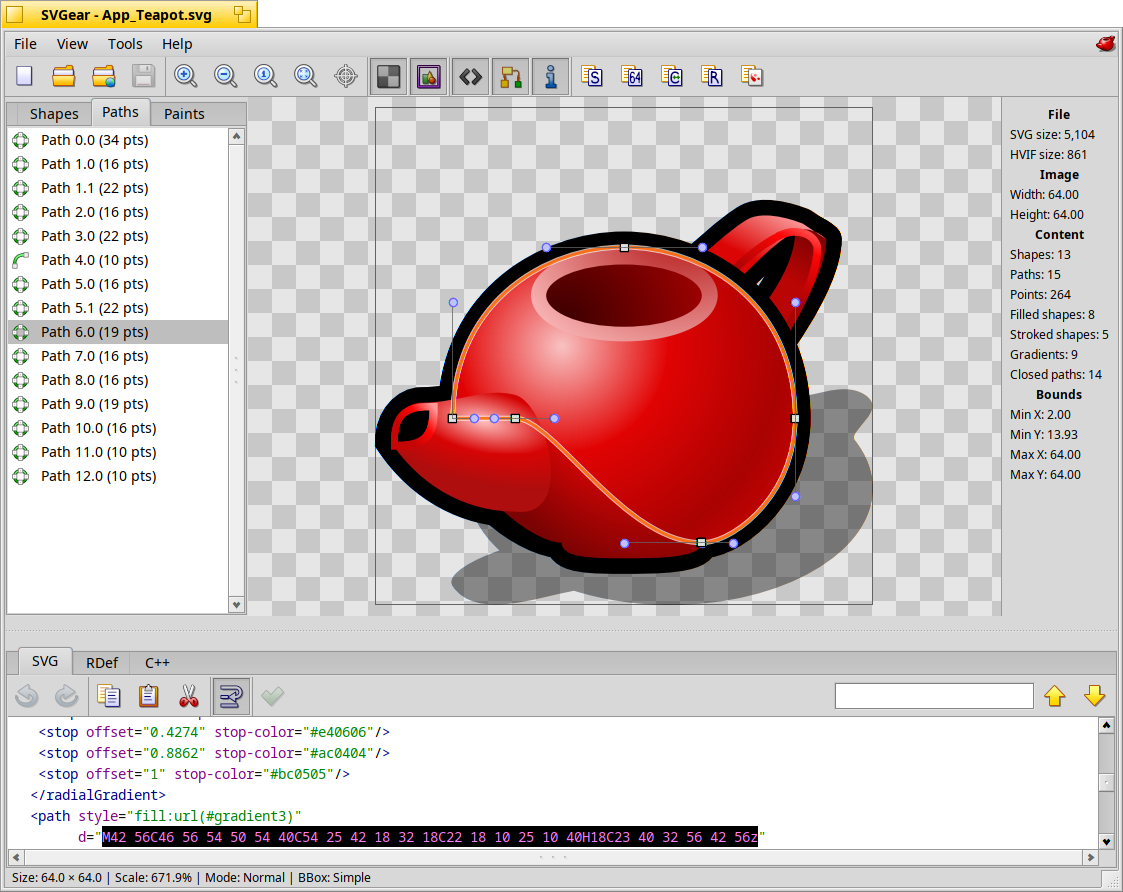
It started out as a convenient SVG viewer, but during development the project evolved, and the app turned into a comprehensive suite for working with vector graphics and-most importantly-for creating native Haiku icons (HVIF).
What can SVGear do?
Of course, it opens and displays SVG files (using NanoSVG under the hood), allowing you to zoom, pan, and inspect the structure of paths and shapes. But the most interesting parts are the tools for developers and designers:
Versatility (Import & Export)
SVGear acts as a universal converter.
Input: SVG, HVIF, Icon-O-Matic source files (IOM), raster images (PNG/JPG for vectorization), and it can even read icons directly from file attributes.
Output: SVG, binary HVIF, IOM (text format), raster PNG (at any size), and source code (see below).
Vectorization (Image Tracing)
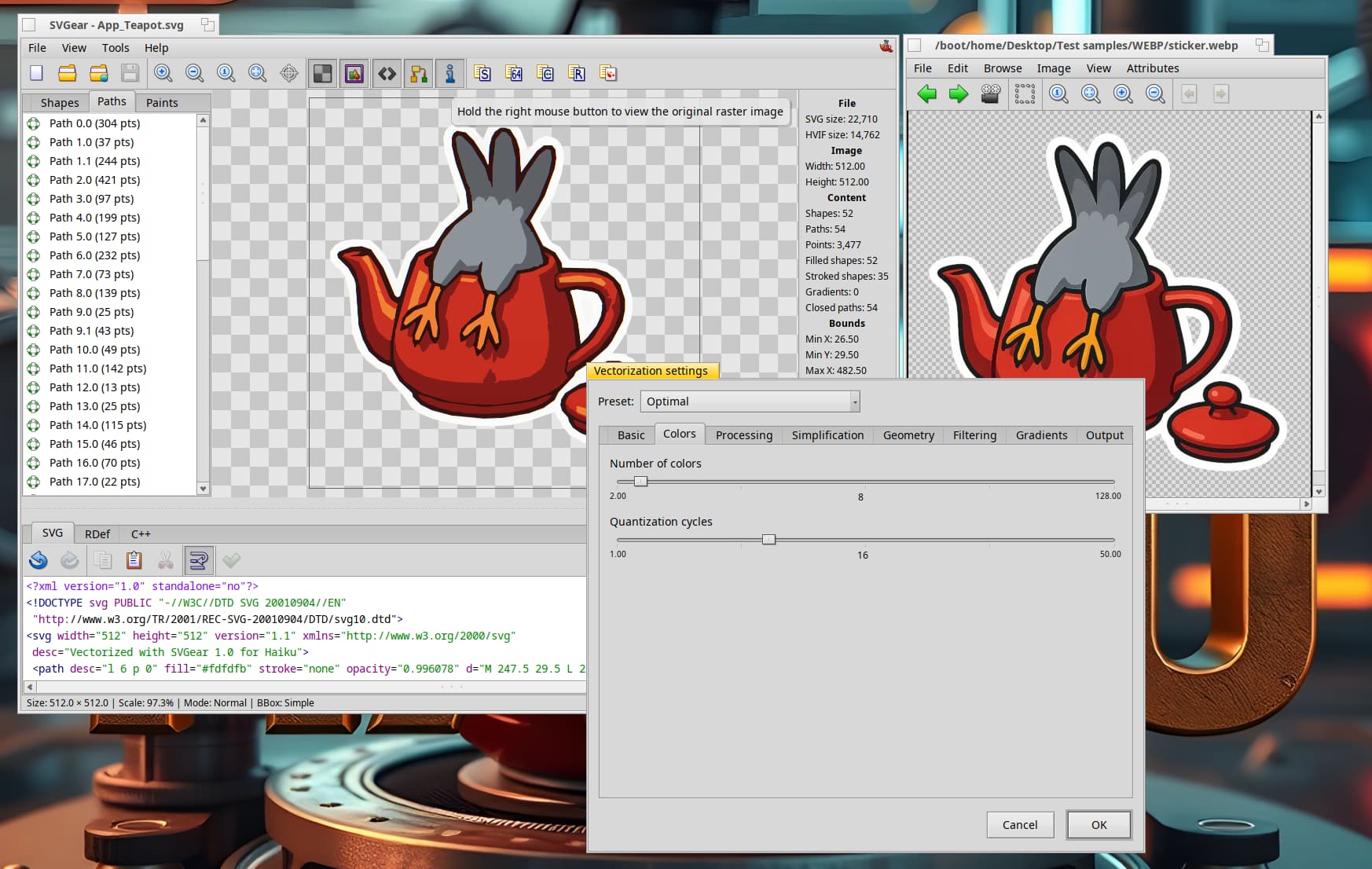
This is probably my favorite feature. You can open a raster image, and SVGear will convert it into a vector! Under the hood, it packs a ton of settings: background removal, gradient detection, path simplification (Visvalingam-Whyatt, Douglas-Peucker), and noise filtering. It’s perfect when you need to quickly turn a logo image into a usable icon.
HVIF Store Client
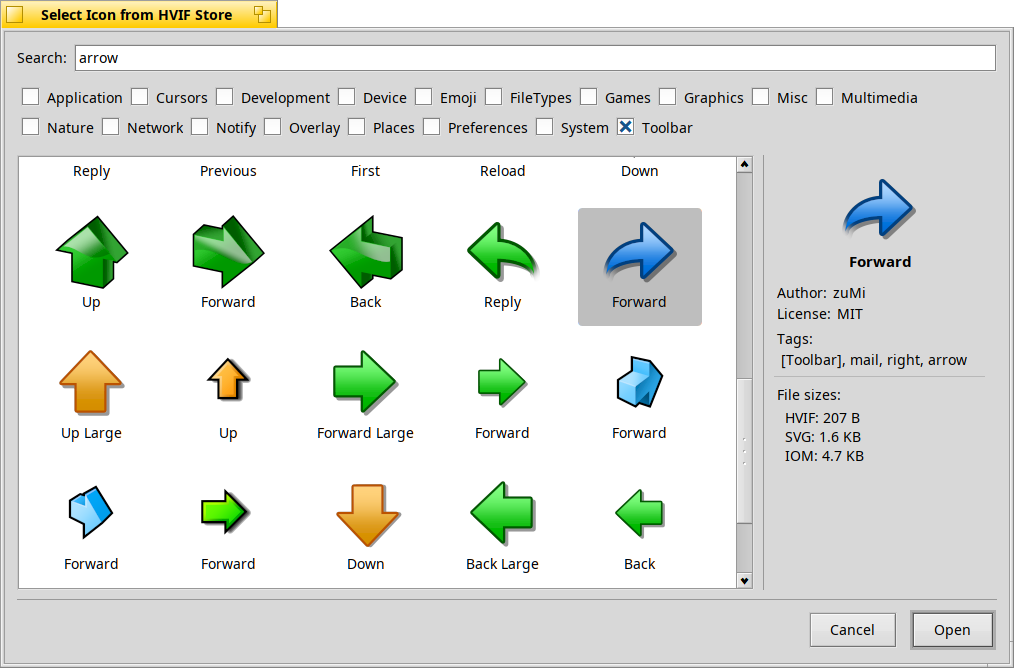
The app features a built-in client for hvif-store.art. You can search for icons by tags, preview them, and download them immediately in the format you need, without ever opening a web browser.
Code Generation
The app is tailored for development. You can instantly generate code from any open file to paste directly into your project:
RDef code (resources).
C++ array (unsigned char array).
All of this features syntax highlighting within the built-in editor.
And the little things:
HVIF size estimation (to ensure the icon fits within file system attribute limits).
Drag & Drop: drag icons from the app directly to the Desktop or FileType
Full support for Dark and Light themes (follows system colors).
SVGear is powered by the hvif-tools. This gives command-line lovers a set of powerful utilities:
icon2icon: Converts between HVIF, IOM, SVG, and PNG.
iom2hvif: Native batch converter from IOM to HVIF (can write directly to file/folder attributes).
img2svg: Advanced bitmap-to-vector tracer (the engine behind SVGear’s vectorization).
The tools are cross-platform and can be built on Linux, FreeBSD, macOS, Windows, and Haiku.
Windows users: The installer available on the GitHub release page is a complete package. It includes the CLI tools, a Explorer thumbnail provider (preview HVIF/IOM files), Inkscape plugins, and development headers/libraries for use in your own projects.
Inkscape users on Haiku: You can open/save HVIF and IOM files in Inkscape by installing the hvif_tools_inkscape package.
I would be happy to hear any feedback, bug reports, or suggestions! I hope SVGear saves you time when creating software for Haiku.
Just tried it on my VM. After installing, every time I chose new options in icon store, I got network errors on refresh despite icons being shown. I closed the app and reopened; those errors never appeared again.
Localisation can be done here on PolyGlot. German, Russian and Turkish are already complete.
This is very strange. I’m seeing the same behavior, even though all the required FileTypes are supported. For some reason, the Roster isn’t seeing them. I need to figure this out.
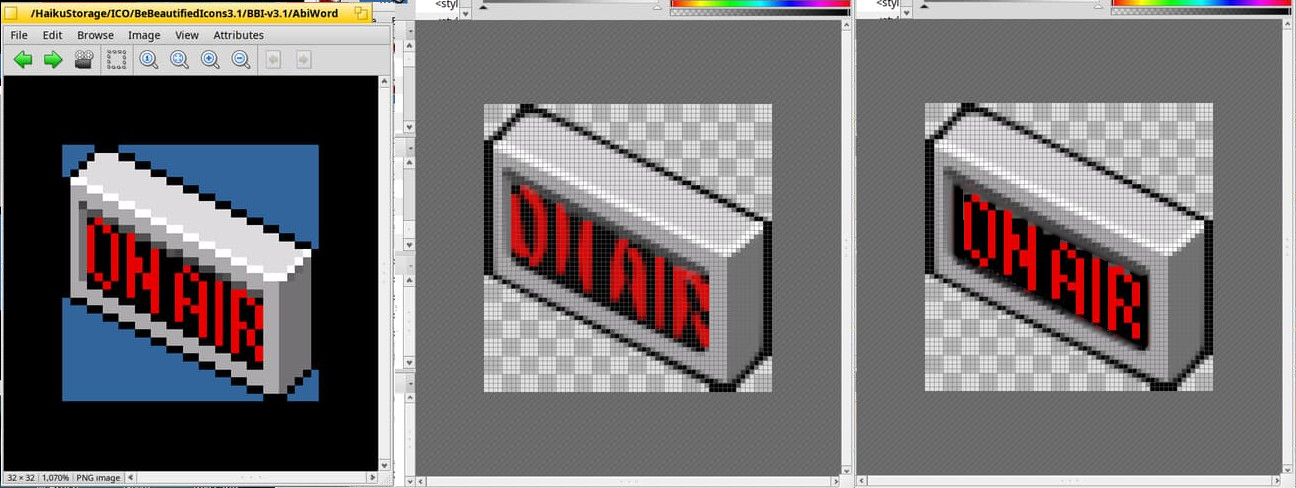
BeOS icons are very low-resolution raster icons, so vectorizing them as is is a very bad idea; we’ll get very poor results. The only thing I can suggest is greatly increasing their size before vectorizing—then we’ll end up with vector images consisting of squares (pixels). But what’s the point?
Thanks for this! I already played around with img2svg in the last days, the SVGear is a great addition to it, guess I’ll be using this more in the future. Great work!!!
Oh what an absolutely amazing and awesome application
It’s fast and lightweight,but also powerful and feature-packed,and something absolutely unique.
That’s exactly the sort of unique native applications that Haiku needs to show it’s not just one of hundreds of Linux distributions,but something different
One little bug I noticed: If I enable the three panels in the “View” menu,only the sources panel gets a checkmark in the menu.
If I then disable the sources panel,the other checkmarks show up and stay active even after I enable sources again (now it’s correct with 3 checkmarks).
Likely a minor thing,just wanted to let you know.
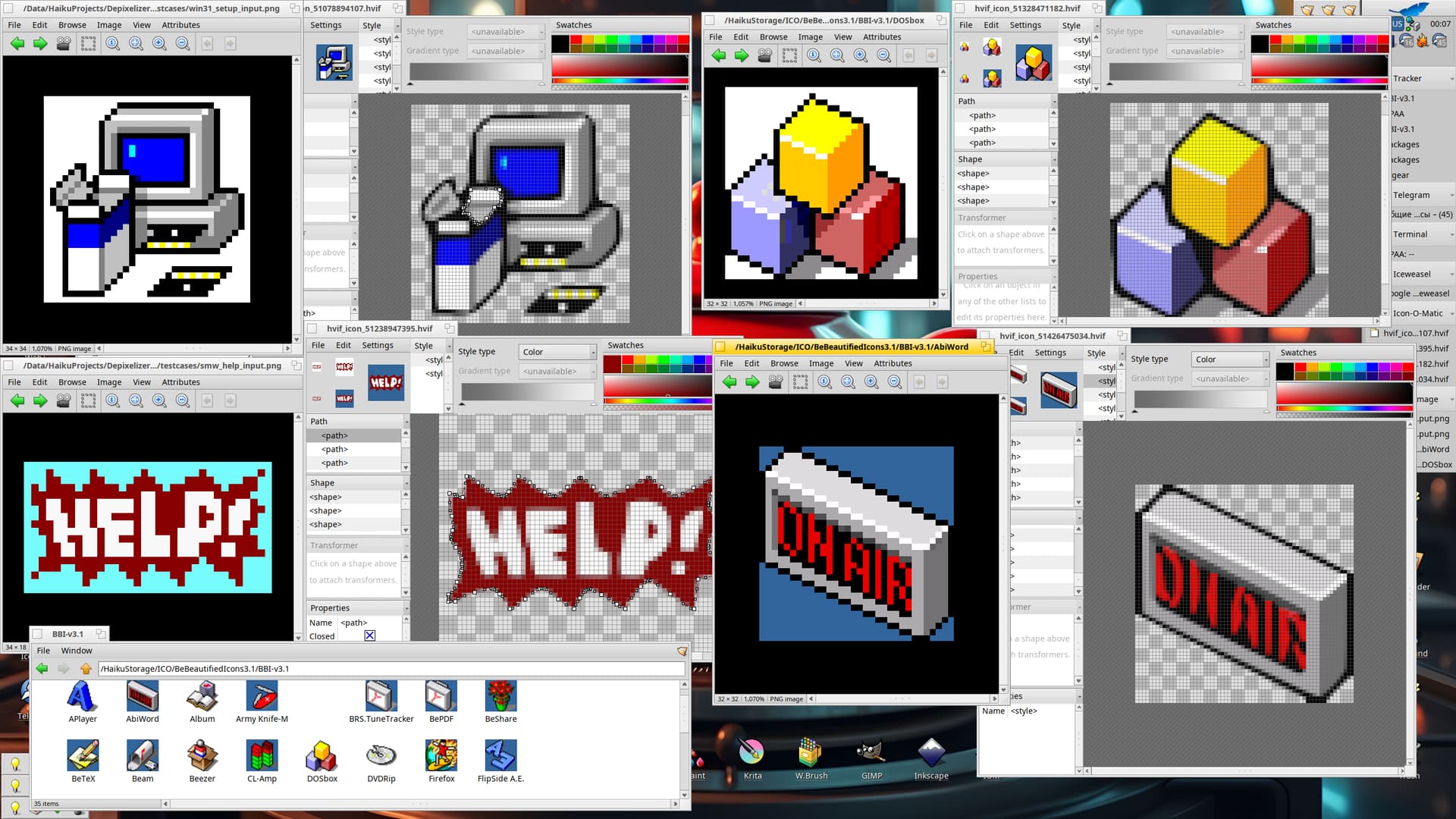
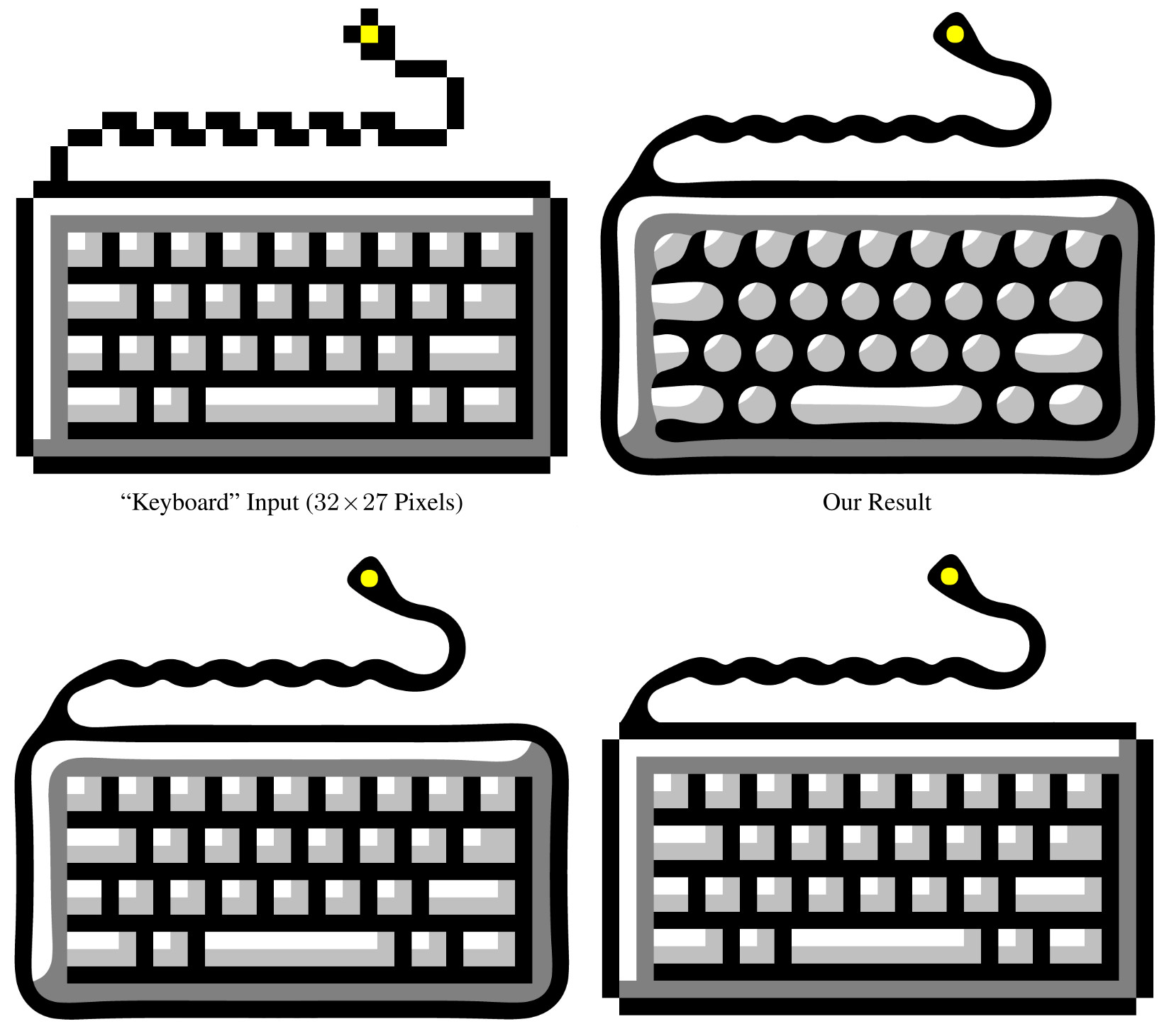
I’m currently experimenting with the Kopf-Lischinsky depixelization algorithm. These are the results on vectorization of pixel art images with very low resolution.
This is a really amazing algorithm. I just had a quick look (not reading) at its documentation… The idea came to me, if possible, to mark different zones in the icon where slightly different algorithm settings could be applied (for example: rounding factor, if there is one)… I actually don’t know if this idea applies to this algorithm at all.
It’s a cluster algorithm, so theoretically it’s possible, but what’s the point? After receiving the SVG file, this can be done in any vector editor afterwards.
There are areas in the images where nothing is rounded at all (the algorithm simply translates everything into rectangles), and it might also be possible for the algorithm to only partially round the corners of the rectangles themselves, which would also be an interesting option.
… So, perhaps I’m suggesting here the possibility of choosing a different conversion algorithm (as addons?.. and other filter addons from Inkscape?) for a different area of the image. Well, if the same algorithm is not enough to perform such diverse tasks.