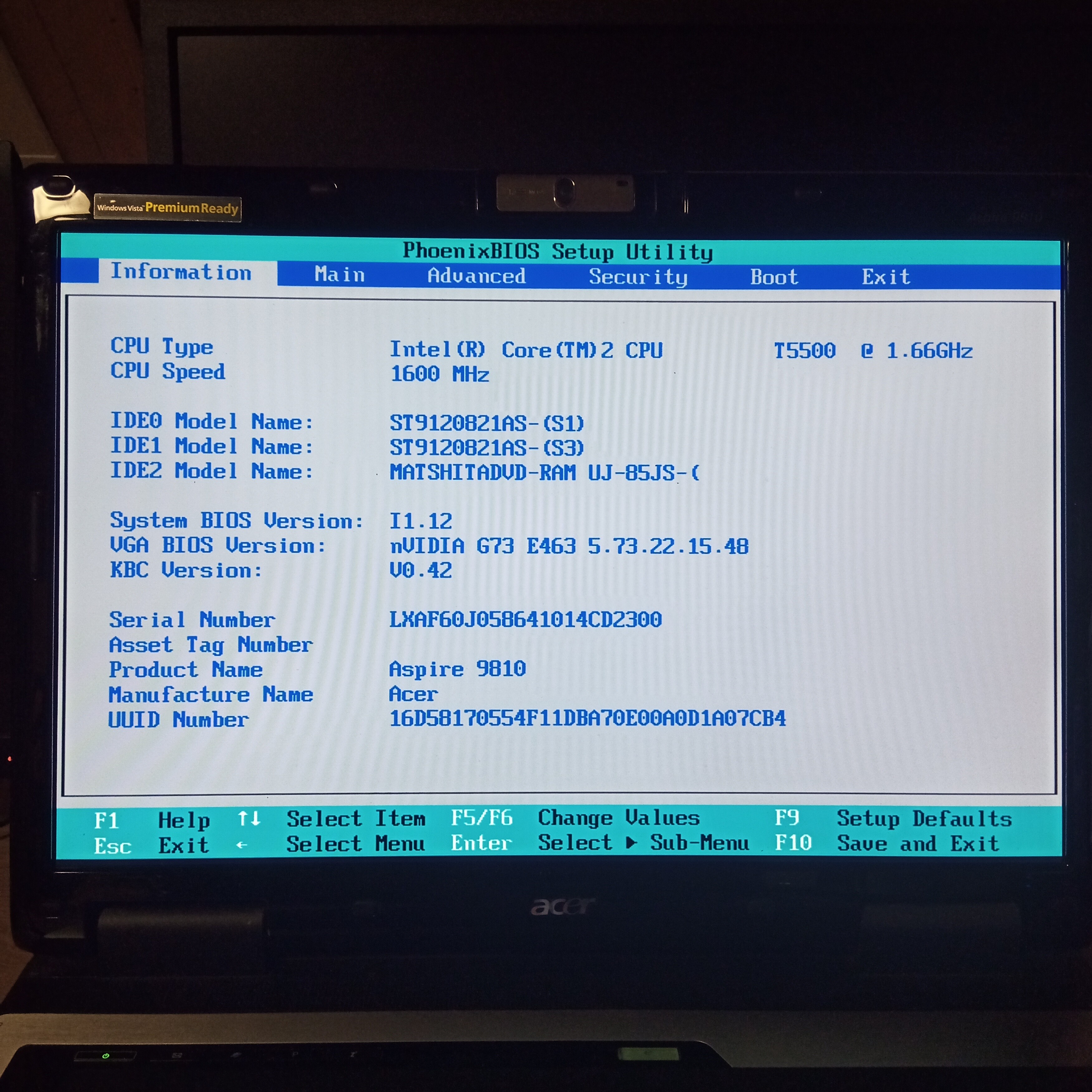
Broken display output on Acer Aspire 9813WKMi

Recently I got a Acer Aspire 9813WKMi laptop,on which I want to use Haiku.
That thing really doesn’t make it easy to install an operating system.
With a bootable USB stick plugged in,it hangs at the BIOS,and the DVD drive doesn’t seem to work at all.
The owner formatted the internal HDDs,so there’s no preinstalled Windows to at least try out that the hardware works properly.
I removed one of the two internal HDDs,put it into another computer,installed Haiku to the HDD,tried that it boots and put it back into the laptop.
With Haiku Nightly 64bit,I see some disk activity,but the screen stays black forever.
The only thing that works is the bootloader menu,where I can enable fail-safe graphics and other safe mode options,but when I continue booting,the screen becomes black,no boot screen shown.
With Haiku Nightly 32bit,the screen is black while booting,but I see some broken display output as soon as the Nvidia driver takes over,so it’s safe to assume that Haiku runs fine and it’s only the screen output that doesn’t work.
It looks like that:
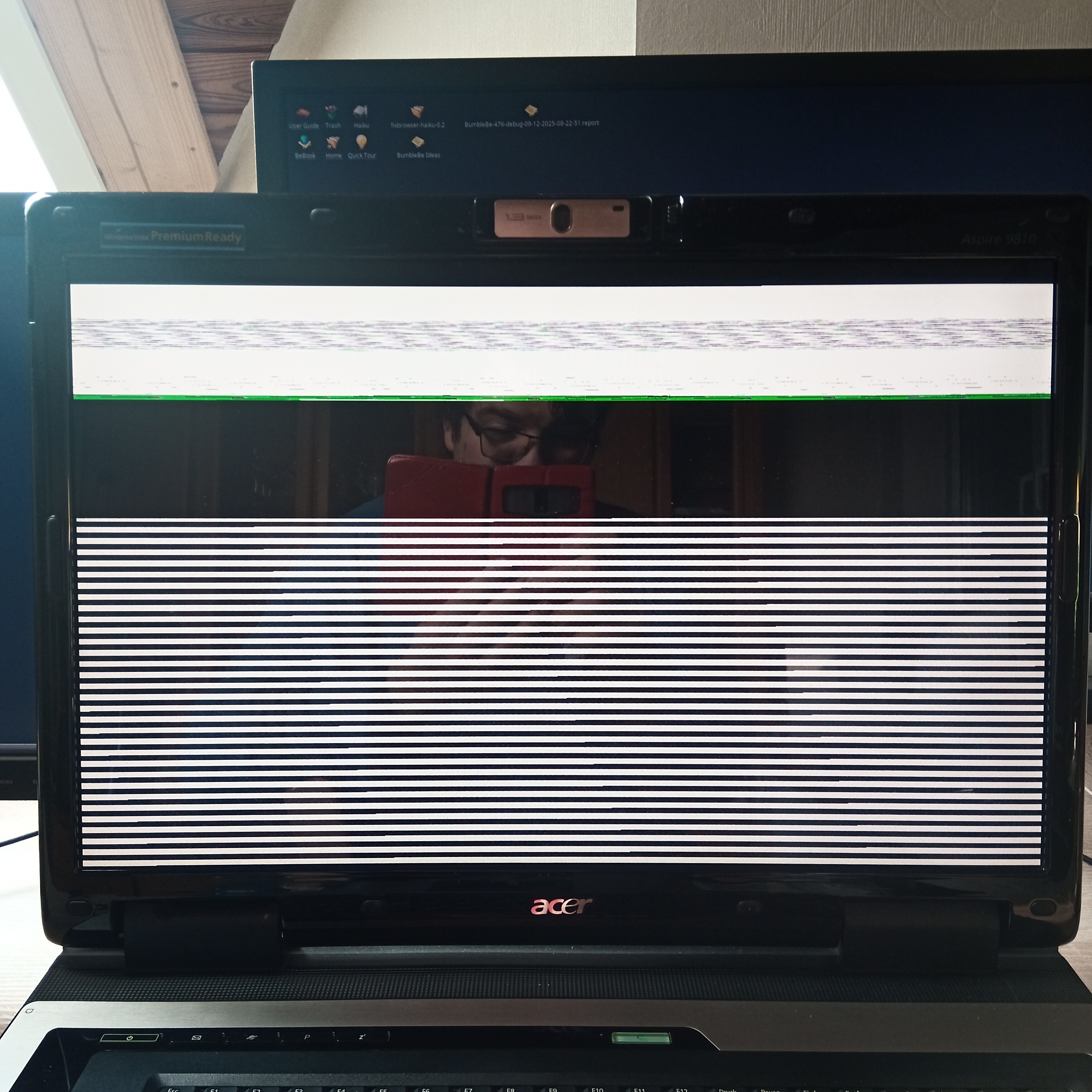

I tried a good number of different screen resolutions from the bootloader menu,but it never works correctly,it just looks a bit different at each try.
If I enable fail-safe graphics,the screen stays completely black.
The laptop has a VGA and a DVI port,I tried connecting both to an external monitor hoping that I see something more useful there,but both ports only mirror what I see on the internal display.
The laptop has a Intel Core 2 Duo T5500 cpu without a integrated graphics unit,and a Nvidia GeForce Go 7600 gpu.
I’m quite surprised that there’s hardware out there where even VESA doesn’t work,that never happened to me before and I always took for granted that VESA is a safe bet.
Does anyone have ideas what else I could try to make it work?
Is there at least some hope that it can be made work?
I currently have the laptop only for testing purposes with the option to buy it if it works for me,and I really like that big monster of a laptop and would like to buy it,but only if it works.
Thanks in advance for your help :slight_smile:

Maybe the machine has a BIOS update where they fixed VESA?

Fixing the NVidia driver, I guess.

Does the machine have an ExpressCard port? If so, you may add a serial port there (or alternatively install one internally on a Mini PCI if it supports that), and then connect that to the serial port on another machine, so you get access to a serial log of the boot. This may help with investigating the black screen problem.

It depends how much time and effort you want to spend on it. Finding another machine may be easier.

1 Like

I’ve never done a BIOS update so far and prefer to avoid risking to completely brick the device if it goes wrong.
Also,it may be difficult or impossible to do without an operating system running from which I can start the update,right?

Yes,the machine has all sorts of ports,ExpressCard is available and it also has a serial port on the backside,but I don’t have a cable for it.
If you only need the syslog,I should be able to copy that from the running system over SSH.
Ethernet connection works,just tested,but I have to put the HDD into a computer with working screen again to set a password and enable SSH root login.

About finding another machine: I have 13 other laptops laying around here (plus 4 desktop computers),so it’s not that I urgently need this thing to work,but I like playing around with new stuff and would like to get it to work :smiley:

I may also try installing FreeBSD to the second HDD and see how far it gets,maybe I have more luck with that (but Haiku would be preferred)

Edit: I uploaded the syslog: https://paste.bka.li/bmZ0A+rH99m.txt

Most modern BIOSes can be upgraded from the BIOS itself, using a USB key with the file on it. Not all though. This works with any or no OS installed

Started seeing that as an option in about 2006 but its still not universal 20 years later.

This isn’t a modern BIOS,the device is 20 years old.
When I put the HDD into the other computer again,I noticed that I accidentally installed a rather old Haiku version on it (somewhere between Beta4 and Beta5).
I updated it and verified that it still works on that other computer,but on the laptop it now behaves the same as the 64bit version.
That is,the screen stays completely black,and I doubt Haiku even boots correctly now,because CTRL+ALT+DEL now triggers a instant hardware reset rather than a reboot after holding it 5 seconds.

On the other HDD,I installed FreeBSD and the CLI works perfectly fine there.
Starting Xorg also results in a black screen,no matter if I try VESA,xf86-video-nv or the proprietary nvidia-driver-304.
Xorg gives very detailled debug output,but not being a Xorg expert,I don’t really know what to do with it.

Sounds like a video driver issue - I would try a ‘live’ Linux on it to see if the graphics work on it.

DO a fail-safe video and syslog to screen from boot menu. You can do screenpaging so walk through the screens while booting to desktop.

I have the Nvidia Go 7600 in a x86 laptop with similar specs. Boots up Haiku R1B5 x86.

Some laptops have issues with hybrid Intel/Nvidia graphics… so depends.

The NV driver should work though….

The problem is that I can’t boot any live systems,because it doesn’t want to boot from USB.
It just hangs at the BIOS screen forever if a bootable USB stick is plugged in.
But I installed FreeBSD to the second HDD and video also doesn’t work on it.
FreeBSD uses Xorg just like Linux does,so don’t expect a difference there.

Good idea,but I can’t do screenpaging because I don’t see anything.
Of course I tried enabling the syslog to screen option already,but it changes nothing.
The screen always stays black while booting,no matter if it is supposed to show the boot animation or debugging text.
Must be an issue with the VESA graphics driver somehow.

Can you provide the BIOS version and BIOS video info?

Disable USB flash drive connections (hopefully flash drives are good) (check USB legacy)..….

See BIOS version data here:


The BIOS doesn’t have any settings regarding USB.

You might try the external output.

You mean VGA and DVI?
I tried both,they only mirror what the internal screen shows.

Ok. I looked at an alike system, it looks like the graphics PCI device isn’t on the main bus (01:00…).

See HW probe of Acer Cheela #c71996c117: lspci_all

Here’s the devinfo output from FreeBSD on the laptop,should be similar to Linux lspci: https://paste.bka.li/EQosS6dkV6i
I don’t even see an entry for the Nvidia card there,only “VGA-compatible display”,is it that?
Maybe that line from the Xorg log is also useful: NV: Found NVIDIA GeForce Go 7600 at 01@00:00:0
I’m much more a software than a hardware guy and have no idea what to do with that information.
What does it mean to me that the graphics PCI device isn’t on the main bus?

Well it means the VGA device is behind a ACPI PCI-PCI bridge. When/if the PCI bus manager tries to reconfigure the bridge, it might break the display. Just a guess.

Might need an updated VBIOS?

https://www.bios-mods.com/forum/Thread-Unlocking-Aspire-9800-BIOS

I finally got screen output to work on FreeBSD :tada:
No,really,it has probably always worked,and LightDM was the problem and I didn’t notice :roll_eyes:
It’s been quite some time since I set up a Unix for desktop use the last time,thankfully I can avoid that most times now due to Haiku being a more user-friendly alternative.

Regarding the VBIOS update,I only see more questions and issues in the forum thread you linked,but no solution.
Again,I want to avoid messing with the BIOS anyway as I don’t want to brick the hardware completely,and seeing now that it can work with FreeBSD,it must be somehow possible to get that working also on Haiku without having to modify the BIOS for it.

Now my problem is still not solved,as my goal is using Haiku,not FreeBSD.
Maybe some debugging output from Xorg can be useful to know which settings Haiku must change for it to work?
One idea that I may try is forcing the native resolution for the Nvidia driver somehow.
The native resolution isn’t supported by VESA and therefore not available in the bootloader menu,but if I mess with some config files,maybe I can make it work?

I assume this is not X512 new NVidia driver but Rudolf’s one. In that case, it indeed has a settings file with a few things you can try. But I odn’t know which settings are available. Maybe you can study the driver sourcecode to figure it out, or ask Rudolf for help.

The driver has a homepage with some documentation: Be-hold: Haiku unified nVidia TNT/GeForce driver

1 Like

Thanks for the documentation link,that has some interesting variables to try changing.
Of course I’m using this driver,as the laptop is 20 years old and not supported by the new driver.
I thought that changing usebios, force_pci or pgm_panel could fix it,but none of them make a difference.
I verified in the syslog that the settings file is detected.
I also tried a lot of different options with the screenmode command.
The native resolution is used by default there,I tried switching to some others and I really saw a difference in the distorted picture,but nothing that works correctly.
At native resolution,the top half of the screen is black and the bottom half is with those stripes you see in the photo at the first post.
At lower resolutions,the amount of black grows and the bars take a smaller part on the bottom,sometimes with black areas left and right.
@rudolfc Do you have any ideas?