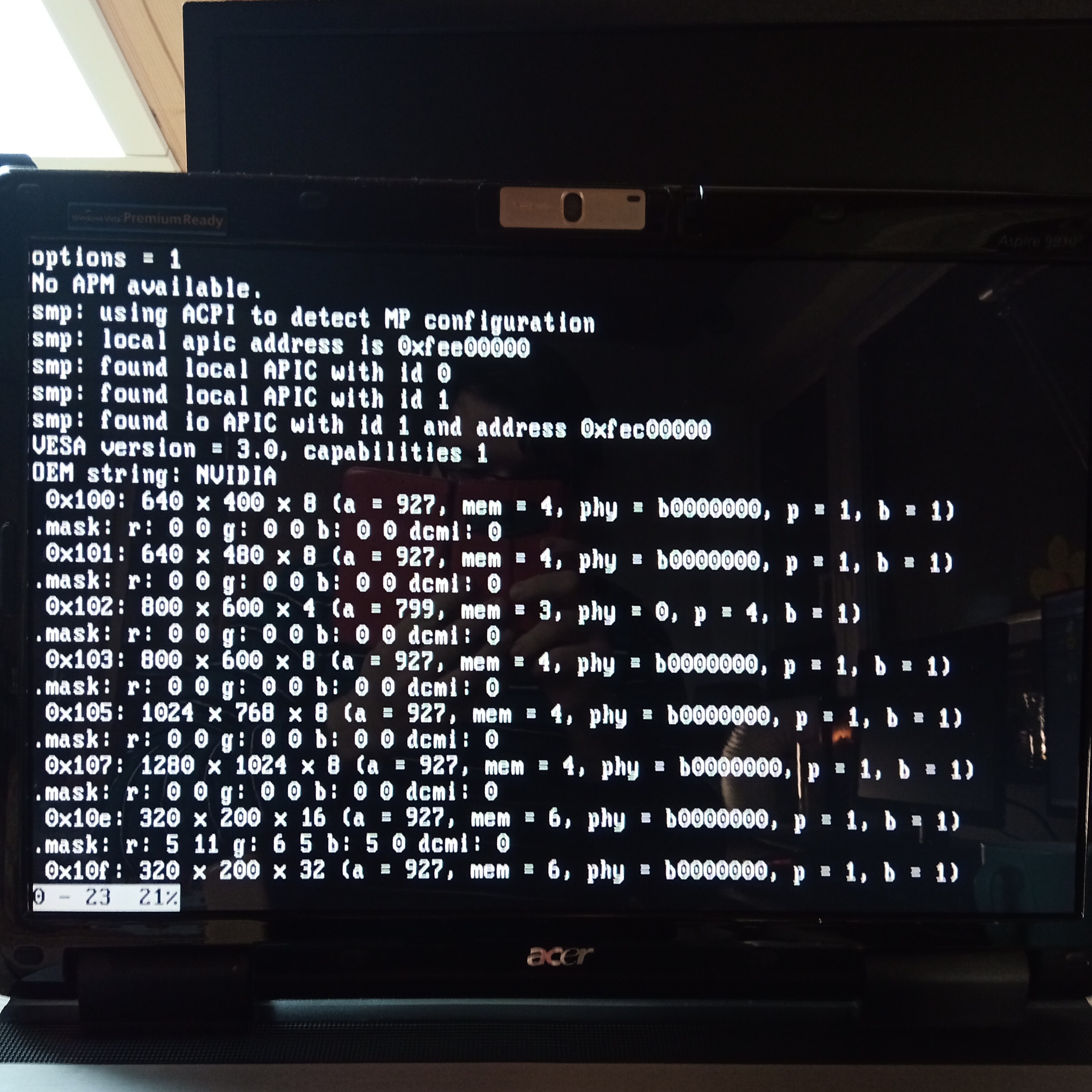
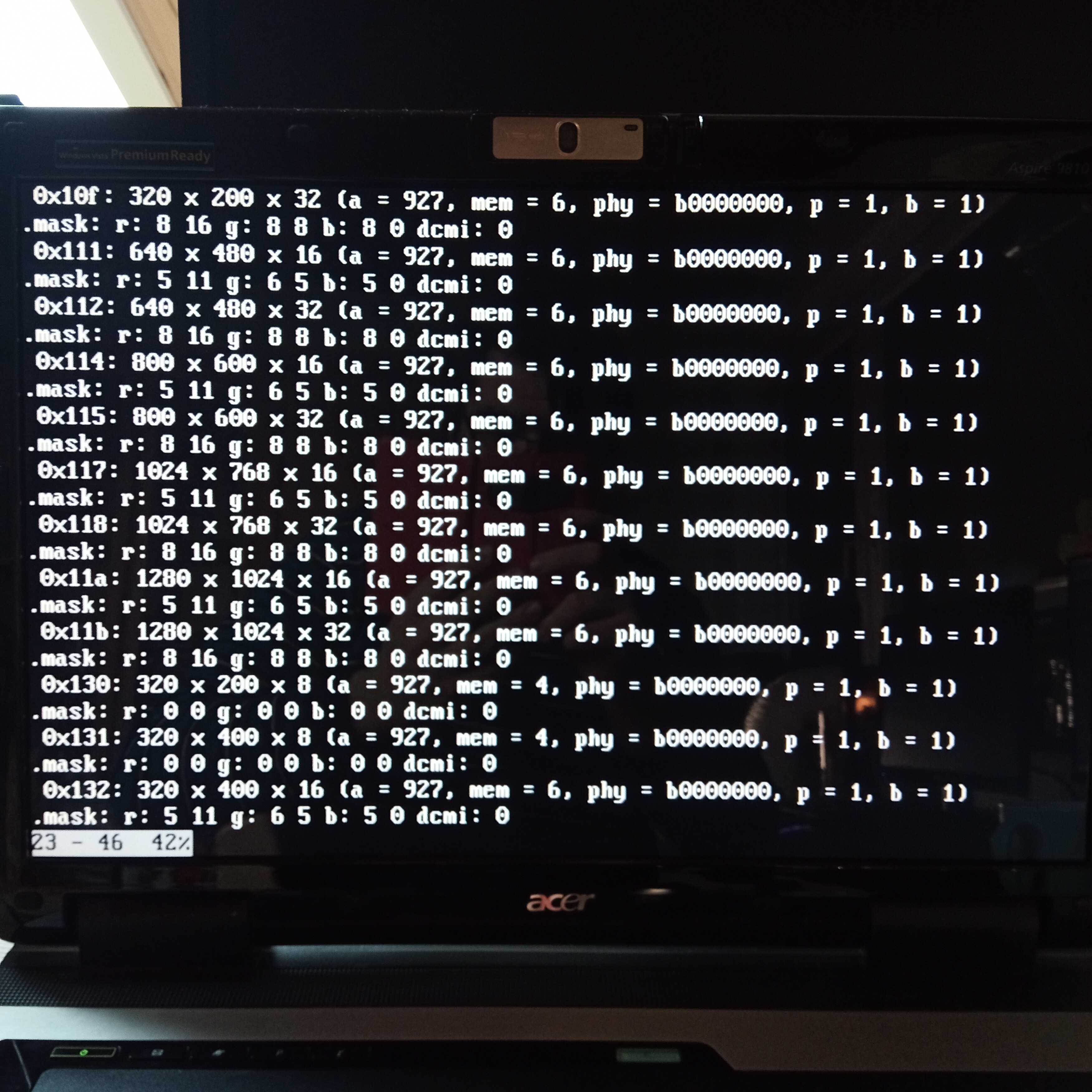
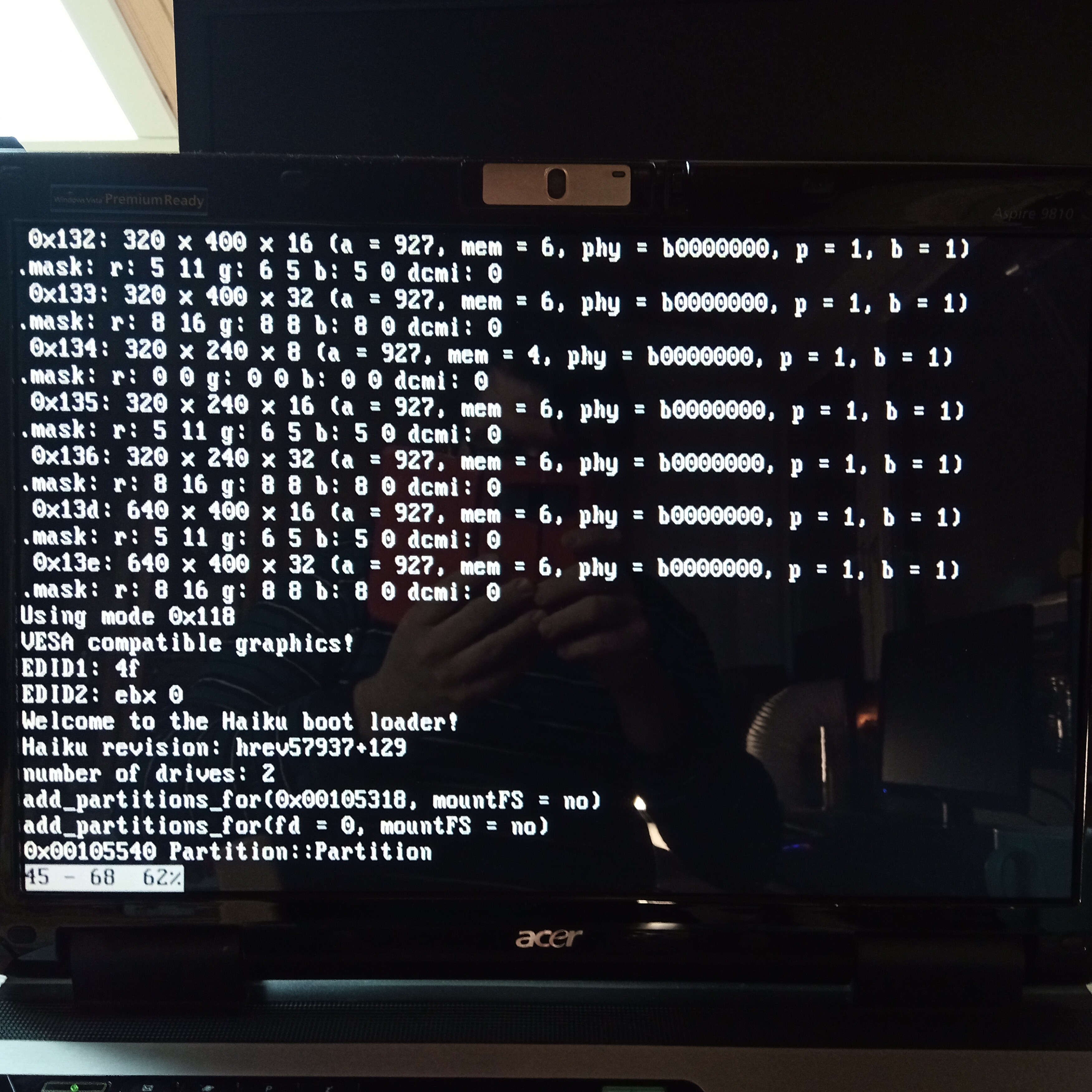
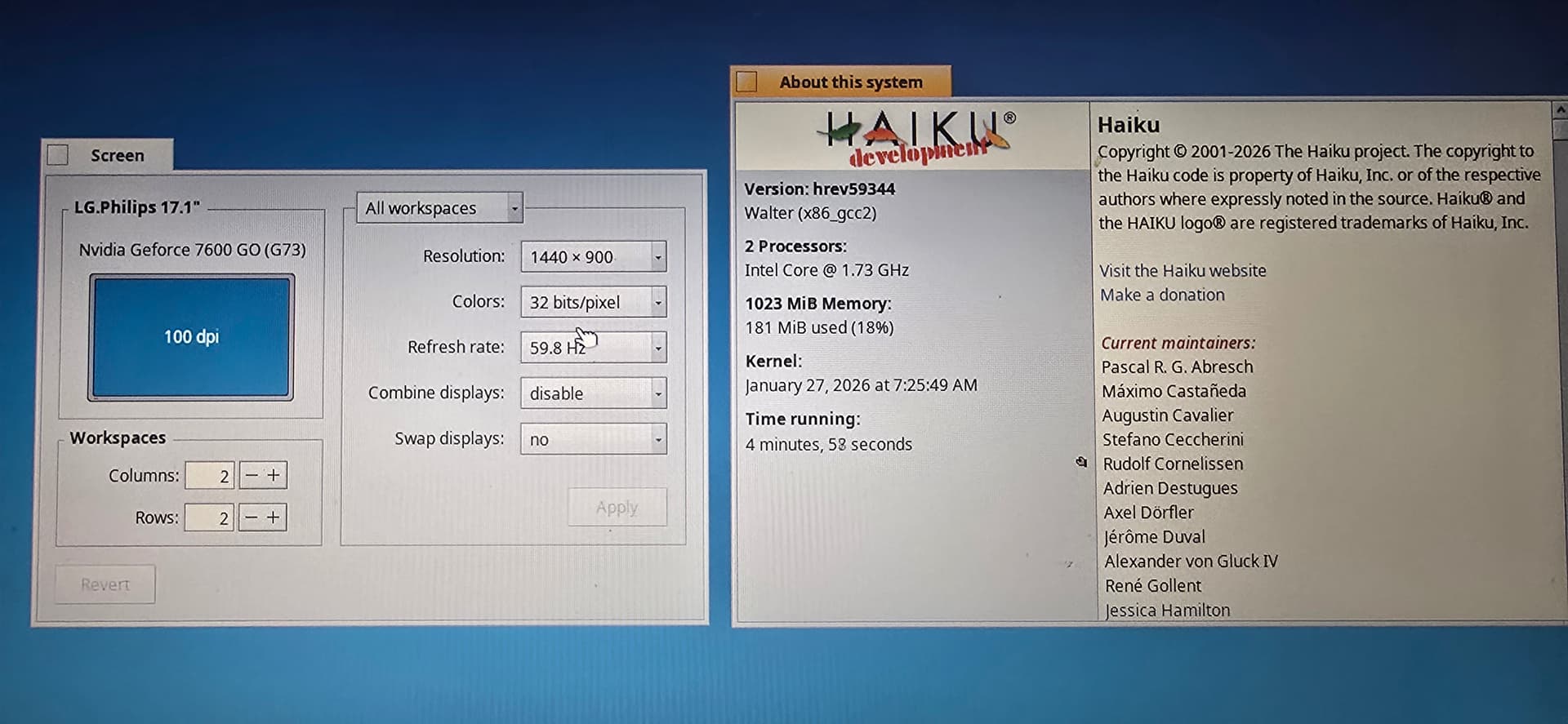
As I already said above,the fail-safe graphics driver does not work at all on that laptop.
The screen stays completely black when using VESA,no matter which resolution I select.
Also,the screen is black while booting,but once the Nvidia driver takes over,I get at least something.
FreeBSD works at the native resolution.
I already tried using FreeBSDs Xorg modeline with screenmode --modeline in Haiku,but that didn’t have any effect.
Yes,I installed Haiku to the harddrive using another computer and then put the harddrive back into the laptop.
Haiku is installed and working,I have a network connection and can access it over SSH,I just don’t see anything useful on the screen.
My drivers actually mostly use their own logfiles. You can enable it in nvidia.settings and reboot. The file should get created in your home folder if I remember correctly. Maybe share that file (via a ticket or so). Might give some pointers. At least, booting up with an external display connected (try both DVI and VGA via an adapter if must be, so seperate boots), and see if one of the setups works correctly. Panels in laptops are more tricky to get working than an external screen, VGA was the most simple to do..
I enabled the logfile and tried connecting a VGA and DVI screen once again.
Here the log without external monitor: https://paste.bka.li/PQ5P3WbVtuh
With VGA: https://paste.bka.li/C15hzn1iHlb
With DVI: https://paste.bka.li/1LGEGobB6Cp
The external screen only mirrors what the internal screen shows.
Each time I tried various screenmodes without success.
I also tried both the VGA and DVI connection with switchhead set to true and false,did not make any difference.
Looks like the log shows two problems: coldstart is enabled, but no ‘pins’ is found: disable coldstart (usebios = true I think).
Also the acceleration engine has trouble in the (Default I think) dma mode. Try if pio mode would work (dma_acc disable). Maybe the engine hang happens due to 64-bit memory being in use, though I haven’t seen that before. This hang might be the actual problem you might be having..
Thanks for the help,but still no success.
usebios=true is the default,I changed that to try if coldstart fixes my issue,but it didn’t change anything - switched back to usebios=true.
Disabling dma_acc does make a difference,but it doesn’t solve the problem.
With dma_acc enabled I had a static picture with stripes,now with dma_acc disabled I additionally get some moving lines.
Not sure if that’s a good thing or not.
Here’s a video: https://upload.odirf.de/file/5qm4R51bmt67.mp4
Thanks for the video. I’ve not seen this behaviour before I think. Maybe with the moving screen you can see it if you move your mouse around (changing pattern) which would indicate -something- gets outputted. I saw memory access seems to work. Since this is a PCI card according to the driver I guess it’s one of the last made pre-G80 cards. Who knows nVidia already changed some registerlevel stuff in there.
G80 era cards have that: I have been experimenting with one or two of those, and it seems the normal ‘advanced’ registers don’t exist or are locked in a new way, as I -was- partially able to control such a card using the old ‘ISA’ entry points. Maybe the most wise thing to do would be to remove your ID’s from the driver so it does not attempt to control it and you fall back to VESA or framebuffer instead..
Unfortunately I can not see any change when moving the mouse.
I can’t even see any change when I’m opening a window using a key combination,which should make a bigger difference on the screen output.
Anyway,the fact that I see at least some random distorted picture gives me hope that it can be fixed somehow.
VESA is not an option here,as PulkoMandy said,it only gives me a black screen no matter what I try or what screen resolution I choose.
I never experienced that on any other machine before,but on this laptop VESA is even more broken than the Nvidia driver.
NOTE: if I use the fail-safe driver, the screen preference info will read ”VESA driver (Generic VESA)” and currently not display the combine display or swap display options.
I see 1280×1024x32, but not the higher resolutions on your snapshots. Normally, you’d see the splash screen and blanks to desktop - so you need to check syslog for the display being finally set during bootup which seems like mode 0x118 (1024x768x32).
Create a ticket for this issue. Otherwise, put the laptop to other known working tasks.
A few users have issues with the nvidia driver… W-I-P
Concerning the Nvidia driver, when using an external monitor, maybe you could see in the monitors internal menu which mode is activated at what refresh rate. You could compare that to the driver’s log and see if that matches. That would be an indication of the timing part of the chip gets programmed correctly or not (crtc part). I guess that doesn’t solve anything, just might give a bit more insight. Especially if it would be possible to test a few modes blindly and compare those to what the screen reports. Note that I probably cannot fix it for you since at least I don’t have that hardware over here though.
With VGA connection,the monitor shows different resolutions,but it always shows 60Hz when it’s somewhat near that.
With significantly smaller refresh rates like 30Hz,the monitor shows out of range.
The resolution matches when set to 1400x1050.
With 1680x1050 set using screenmode,the monitor also shows 1400x1050.
With 1440x900 set using screenmode,the monitor shows 1600x900.
Also I noticed that I can influence the speed and direction of the flickering stripes of which I posted a video by changing the refresh rate.
On resolution 1680x1050 the stripes are moving down on refresh rates to a maximum of 59.4,starting at 59.5 they’re moving up and the more you go away from that point,the faster they move.
With DVI connection,the monitor always shows 1920x1080 no matter which screenmode I set for Haiku.
I tried changing it a few times using the screenmode command,the picture changed each time,but the information that the monitor shows stayed the same.
That is the native resolution of the monitor,which isn’t even supported by the Nvidia driver.
The highest resolution the driver offers is 1680x1050,which is the native resolution of the internal display.
I don’t expect you to fix it for me,but maybe I can do it myself if you give me some hints.
I have the hardware here to test and I have already worked with the Haiku codebase a lot,but I never did driver development before.
Long time ago I did write a document about my workflow with writing drivers. It’s in the Dutch language. Maybe AI can translate it these days. Also an attempt (or two) was made by some people to translate it in English. Unfortunately some finer details of what I meant to write did get lost in that translation.
Anyhow, maybe it could help you a bit.
Btw I am having trouble posting here since a recent discord update. My normal system is windows 7 still and it seems it is no longer possible to access this forum anymore.
On my Windows 7 machine I use the Supermium browser, which seems to be one of the last few ones to still support old Windows versions and run a modern web engine: Supermium Web Browser