Boot stuck at 3rd icon, can’t enter boot options

When trying to boot an install of beta 5 from USB on a Dell Precision 5490, it hangs with 3/7 icons lit up on the boot screen. I can’t enter boot options to try any debugging options, because when spamming space I get a blank screen instead of the boot options.

The install works on other computers, it’s just this one that doesn’t seem to like it

Howdy! It has been a while since H1B5 was released. The drivers for hardware may be out of date or do not exist. I would be curious if using a nightly version would install…you could try that instead. The reason is more drivers are more up to date with the nightlies…of course with nightlies, you will get the bleeding edge software…a mix of good with a l’il bad.

3 Likes

Also I get blank screen for a long time until the Haiku boot menu screen appears – in my case – as I have many-many version statuses hold (2+ years back).
The bootloader needs min(s?) to create the list of all restore points available - I assume it is created always as when you initiate to try to login into the menu instead of booting itself.

If you have many packages / stauses on hold, then maybe you should wait longer till the menu appears.

2 Likes

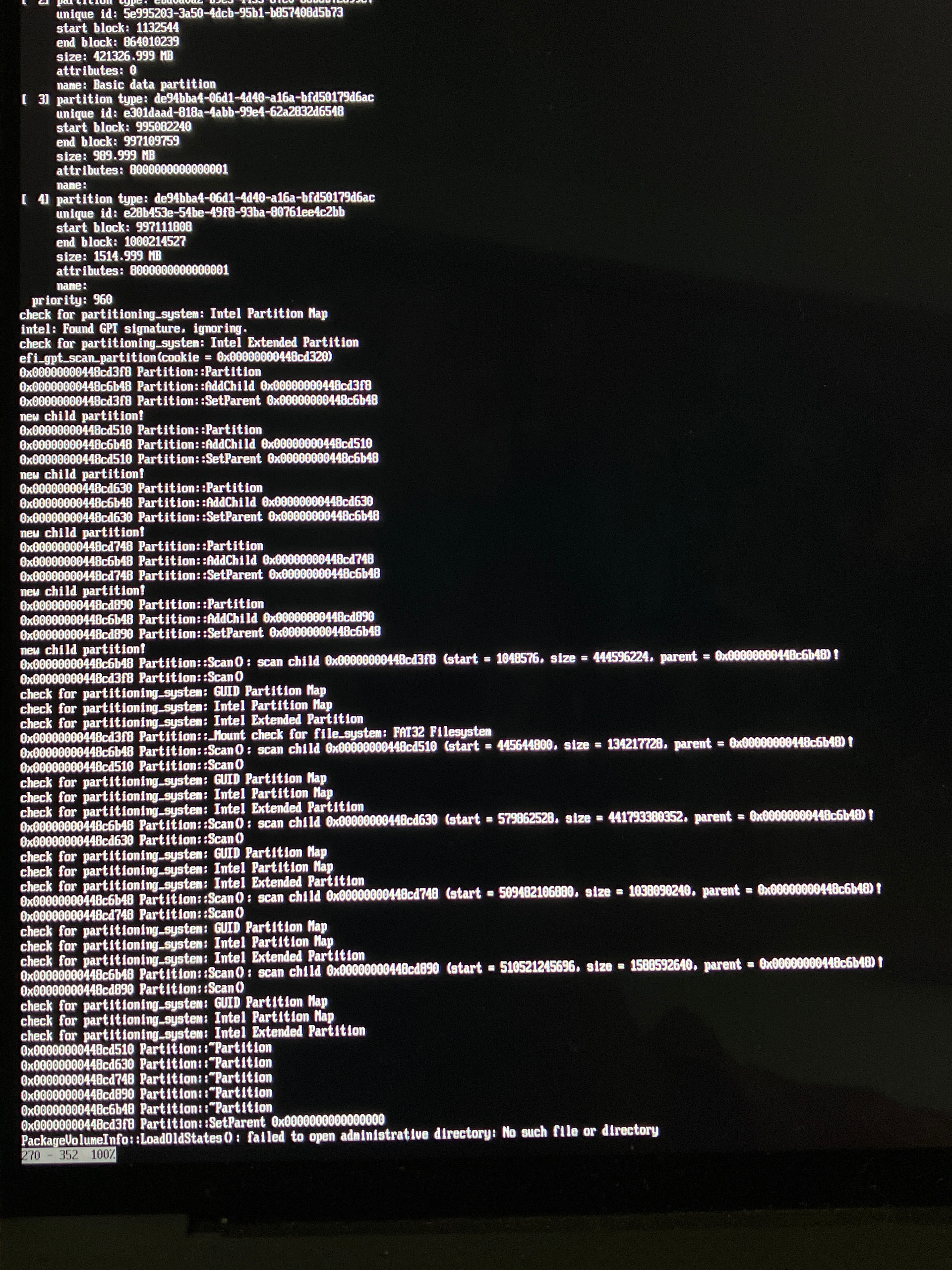
Using the latest nightly ends up in the same spot, but thanks to what was pointed out by @KitsunePrefecture I was able to get to the boot options and get this at the end of my debug log:

Booting into safe mode stops at the same spot

Ahoy @TheColourOfFear !

Well, I cannot tell it surely, but as I see your install that you may did onto the machines internal drive, can have some issue regarding how/where to did the Haiku install.

Did you installed Haiku besides an existing OS to that drive ?

If I read well this part of log, you have GPT partitioned disk there, all GPT partition scanned, and bootloader would process installed packages, but cannot find
/boot/system/packages/administrative directory on any of these partitions.

The Haiku install onto the internal disk somehow possibly failed.

Did you followed some instructions ?
Had you used Drivesetup to create the new partition(s) ?
How partitioned the disk for the install ?

Seems, it is EFI booting on a GPT partitioned disk.

It is interesting for me why not found the packages, however as I had not installed Haiku in this way, I cannot give you a useful advice, but maybe the partitionig / formatting should be fixed or redo the install from the USB drive.

Maybe use the USB drive to find the install on the internal disk.
Did you know that the USB Haiku system menu is also accessible in the same way?
Can you also try to start it with that - if there is a Haiku install on the disk?

If the USB Haiku bootloader cannot find the internal disk installed Haiku system, or if yes, but also failing to boot the installed Haiku, then it can be some installation step not OK, or the created BFS partition – if there’s any – not OK some way.

Haiku isn’t installed to the internal drive at all, I’m attempting to boot off of a USB stick (in the case of the log I posted, it was flashed directly with the nightly anyboot ISO with rufus ).

The internal drive has windows installed but from my experience that shouldn’t break anything? (every other computer I’ve used to boot haiku on bare metal has had a non-Haiku installed on the internal hard drive )

Ok then I misunderstood this. As for me it was like to boot an already installed Haiku, it was not clear the partition also were on an USB thumbdrive - or the installer thumbdrive that fails to boot.

If the Haiku installer USB fails to boot, then I recommend to use Balena Etcher to create the USB Haiku Installer drive instead of Rufus. In case Rufus you have to select the proper way to create as there is more option to create the install drive. In case Balena Etcher it is more straightforward, as you select the anyboot ISO of Haiku, and the target USB drive under Windows, and that’s it.
I admit I had not liked Etcher under Windows, but I tried to use on Win7, but recently on Linux I had created the USB Haiku 32 bit install drive with it successfully.

When I had Windows, I frequently had issues with Rufus not making the usb stick correctly. Moving to Etcher fixed that and I very rarely have a bad stick.

I run Mac and Linux exclusively, well in addition to Haiku of course. I run multiple qemu’s and on metal on multiple computers and reinstall regularly when I am doing experimental stuff.

I would try and switch to Etcher try DD, that has worked for me on occasion.

good luck

Well, Rufus very efficient to handle Win ISO image writing to USB sticks, it knows some adjusting right now to modify the image meanwhile transferred to the USB key.

Basically I used dd command to create USB Haiku Live/Installer previously. I was surprised myself when when Balena Etcher on Linux finally worked as Christopher Barnatt showed in their explanatory videos.

It weird that it then find a GPT partionning on an USB key.

I agree, I guess the issue is how the haiku iso was written on your USB drive.

1 Like

Haiku bootloader scan all mass storage drives - which is available by firmware/kernel settings – I mean not blocked in (UEFI) BIOS and kernel parameters – and drivers make it possible to read.

So I assume those GPT partitions are possibly – at least most of them - are on the internal disk.
Bootloader also probes that : a drive has a so-called MS-DOS aka MBR partiton table or GPTpartiton table on it, as these are the most common partition tables – at least in case personal computing. I think it as I’ve seen until now such messages in syslog, and because basically these 2 partition table handling exists in Drivesetup actually. :))

I think it is not strange - as when I saw video about Linux installed onto any Apple computer the adequate MacIntosh/MacOS created the necessary partitoning, so basically APM not managed by any other OS. (I may am wrong, as I had not investigated thoroughly.)

Here you are some partition table types (by Wikipedia) :link:

  1. Master Boot Record (MBR)
  2. Extended Boot Record (EBR)
  3. GUID Partition Table (GPT)
  4. Boot Engineering Extension Record (BEER)
  5. Apple Partition Map (APM)
  6. Amiga Rigid Disk Block (RDB)
  7. BSD disklabel

:cowboy_hat_face:

Sure, it scan any disk found, and partitition(s) on it, but in the end the BFS volume on the USB key should also be considered, in particular when it’s the BIOS/UEFI active boot disk and when no other BFS volume can be found on other disks.

Here it seems to freeze after trying to find an administrative folder of a BFS volume. So either it’s the USB key BFS volume, and in such case it means the BFS image written on it is broken (or there is an issue reading from the USB key), or there is another BFS volume on another disk, and then why the bootloader even try to read its administrative folder when it’s not the boot volume anyway.

Tried using etcher, same result.

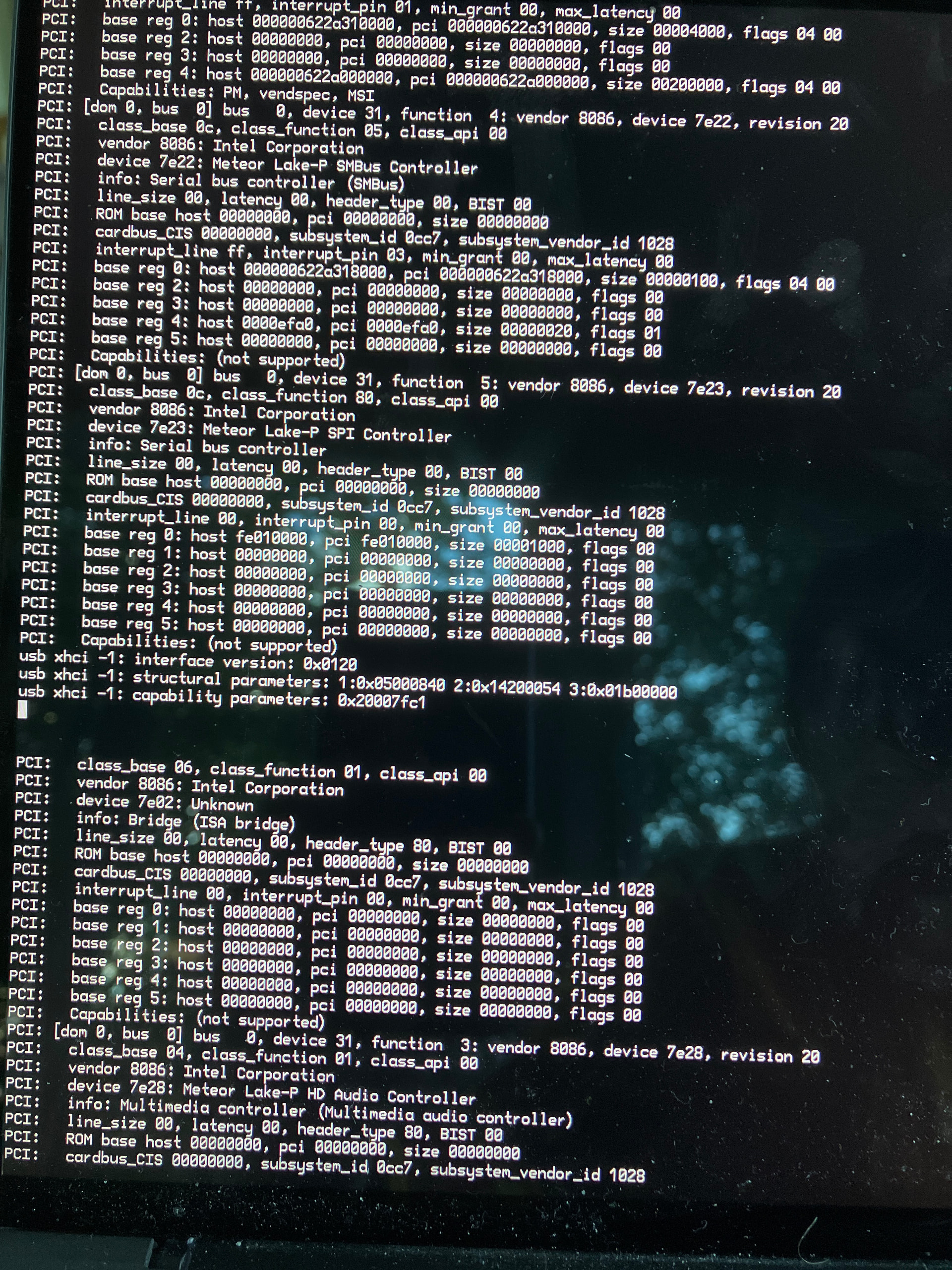
I think I may have posted a log from the wrong place earlier? This is what I get from the debug text output on the boot screen itself. (Had to disable ACPI in boot options to get this far)

At this point it stops printing more text

Hum, according to this kernel syslog, it seems to be stuck at initializing the USB 3 controller right after having detected its presence on the PCI bus.

Do you have any UEFI settings regarding the USB 3 controller of your machine?
Any “USB legacy mode” ? Or offer to disable the USB 3 (XHCI) support, only exposing an USB 2 controller (EHCI) ? If there is, you may try to disable the USB 3 support in BIOS/UEFI.

Last but not least, did you tried to boot with the latest nightly instead of R1Beta5, to see if there is any difference? In fact, R1Beta5 is quite old now.

Right after the last logged line, the XHCI bus kernel driver is entering in a loop to get ownership of the controller from the BIOS/UEFI. AFAICT if it succeed, you should see some extra log lines then.
In particular the following log message when the XHCI bus kernel module is starting to mbagae that controller:

“starting XHCI host controller”.

As it’s not visible, and no error message is also visibile, my guess is it’s stuck at this controller handover step.

Does your USB key an USB-C one?

If yes, do you have an USB-A port on that laptop and an USB-A key you could try to boot with?

Because it seems that we have an issue regarding booting from an USB-C key. For reference here existing ticket about similar issue.

1 Like

Does your USB key an USB-C one?

This might be the issue, this laptop only has USB-C ports. I’ve been trying to boot USB-A keys though a C->A hub, which seems to be similar to the issue in the ticket.

If that’s not the issue, then to answer the other questions:

  • There isn’t a USB legacy mode in the BIOS
  • I’m using the anyboot ISO of the latest nightly written using balana etcher to a thumbdrive

Yeah, so I fear that you’re facing the same issue than in the ticket above, alas.
May I suggest you append you own syslog to that ticket, that may boost the ticket a bit.
We may need to run some KDL commands to potentially get more info on the stucked xhci bus state, for instance.

As more and more laptop are moving to full USB-C, the issue will become quite a blocker.

1 Like

If you put away that Haiku might have issue with USB-C boot capabilities … then there’s another thing you must face with.

If there’s no legacy mode into the BIOS, then there’s a chance your UEFI BIOS does not support well, if you have no GPT partiton table on storage devices. I am not absolute sure in it.
In case optical media the installer media would be ISO 9660, so no problem. In that case the challange would be your UEFI firmware would support an external CD/DVD/BD drive to boot from.
The thing is, when you create an USB stick then it is changing, as there will be actual MBR partition map from the ISO image’s ISO 9660 TOC and its bootable part.
I mean on another computer you should create a Haiku installer with GPT partition.
I do not know surely if the official anyboot ISO is MS-DOS or GPT partitioned, but if MS-DOS …
There is a GPT partitioning type, when there is a CSM compatibility partitioning which was created to the opposite case then you have …

Hybrid MBR (LBA 0 + GPT)

In operating systems that support GPT-based boot through BIOS services rather than EFI, the first sector may also still be used to store the first stage of the bootloader code, but modified to recognize GPT partitions. The bootloader in the MBR must not assume a sector size of 512 bytes.[9]

… if Haiku installer image created this way, then GPT partitioning at boot does not issue,

as in your case the Installer works as GPT drive for Haiku, as Haiku use EFI to scan your disk, and your UEFI only BIOS surely detect and read GPT partition tables, and yet the older machine with BIOS without UEFI also can boot of it, as Haiku handle both of it.

Anyway, someone with better knowledge than me, can help you, and also the USB-C booting issue in the ticket above, and especially in your case, where only USB-C port present in the machine’s motherboard, would be resolved with a patch finally.

I would try an external optical drive with written Haiku boot CD/DVD, if you (or someone for you) can write CD or DVD (as nightly is still within CD size) - so if you can have such possibilities, and the machine can boot from it.

Good luck !

:+1: