I’m trying to have NetWorker create temporary files to be opened by other applications, but I’m not sure where to put them. The files are not expected to be saved permanently.
Are there any recommendations or best practices regarding temporary files from an app? Does Haiku have a way to remove temp files automatically, e.g. on shutdown?
This is not the right way to go about it, you should instead use the temporary dir humdinger mentioned. When using it the system can decide for itself if writing the file to disk makes sense or not. If you use a ramdisk you force the system to never write it to the disk, which means for long running processes (some people here run their system for days I’m told) you now have RAM that is always occupied and can never be used for anything else. (Unless written to swap, but that would be a pretty bad use for a RAMdisk…)
I can see /boot/system/var/shared_memory directory labeled as RAMFS.
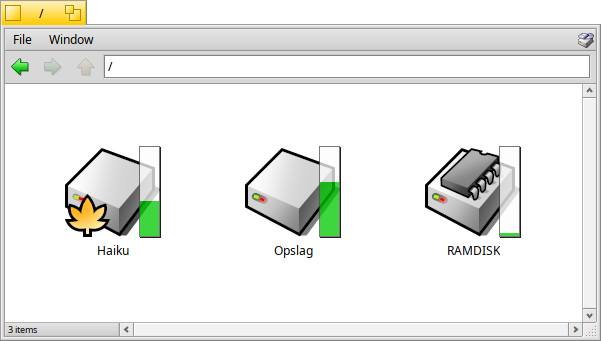
Is it a ramdisk volume? The information window says it hasn’t size.
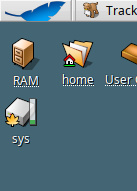
The icon looks nice and very familiar for me. It has a gauge bar like other volumes have.
If it’s ramdisk then would be nice to have it accesible as e.g. /ram
I suppose you could do a ln -s /var/shared_memory ./ram …
Not having much experience with that ramdisk, I suppose it’s dynamic(?). But as nephele mentioned, it’s probably a bad idea to use for really big files.
Thanks! IIRC @BiPolar also had a setup for this (forgot the link), works nice, might even try this when working on rust sources, pointing CARGO_HOME there.
Well, this turned into an interesting discussion on RAM disks, although it’s probably not a good idea to set one up every time I want to preview an HTTP response.
Using B_SYSTEM_TEMP_DIRECTORY worked great, and everything’s gone on reboot, so I don’t have to clean up anything myself.
status_t
ResponseFileManager::_GetTempDirectory(BString& path)
{
    BPath tempPath;

    status_t status = find_directory(B_SYSTEM_TEMP_DIRECTORY, &tempPath);
    if (status != B_OK)
        return status;

    status = tempPath.Append("NetWorker");
    if (status != B_OK)
        return status;

    path = tempPath.Path();

    if (mkdir(path.String(), 0700) != 0 && errno != EEXIST)
        return errno;

    struct stat info;

    if (lstat(path.String(), &info) != 0)
        return errno;

    if (!S_ISDIR(info.st_mode))
        return B_NOT_A_DIRECTORY;

    return B_OK;
}