On the contrary. Michel is trying to say that in Linux (and most other operating systems) it’s normally Ctrl-C to interrupt a running program. So when you flip Ctrl and Alt in Haiku and Ctrl-C becomes Alt-C in the terminal, that can be confusing for a seasoned user. I’ve certainly had this issue. Not a big deal, but it still bites me sometimes. If I was using Haiku more, I’d probably just try to learn its native Alt+whatever key combos instead.
1 Like
Nope. CTRL-C in a terminal is always the same in Linux, MacOS … it probably goes back to the first terminals in the 1950s. On UNIX-derived systems, the actual terminal is the console, the giant black screen before any programs are loaded, and that uses CTRL-C, CTRL-Z etc. What we think of as the terminal, a small version of that on a pretty desktop, is actually a terminal emulator and it emulates the console’s keystrokes. On a properly written Linux Terminal Emulator, CTRL-C doesn’t copy text, because that would interfere with the sacred UNIX CTRL-C, so it is the only program on your system that requires SHIFT-CTRL-C to copy.
Haiku doesn’t have a console, but the default setting gives the same effect in our Terminal app. Real terminal junkies can get very upset when you change that  but the real problems come with ports. Ports of modern QT5 and GTK programs should be able to figure out that the modifier keys are being intercepted and switched. Java programs … who knows? They might respond to the new keystrokes but have the old ones still printed in the pull-down menus. Or the other way round. Or they might work perfectly. No way to tell, there are so many Java frameworks. Games might have the same problem. So you now have the problem of having your keys the way you want them 95% of the time, except in that one program you like. Oh, and while authors of native Haiku programs are pretty good at mentioning this one-button switch, don’t expect to find any mention of it in the documentation of ported programs. The original author, after all, didn’t know about this possibility. Finally, if you post here that “Hey, CTRL-O doesn’t work in MyGreatApp” some may not understand. None of that is the end of the world, but it is something you should be aware of
Well, when I had to use a Windows box for work and a Linux/MacOS/Haiku box at home, I managed somehow. There is no real “better” involved, these are just conventions. Some key combinations are a little easier to do one-handed with CTRL, others with ALT.
2 Likes
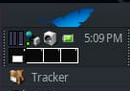
I think you are better off switching to a new workspace that is empty instead of having a show desktop shortcut. You can use the workspace switcher (which can also live in the deskbar) or use shortcuts. This way everything on the current workspace stays where it is. I tend to make the workspaces 4x1 and put the switcher in the deskbar like this:
1 Like
Thanks @Munchausen. I will try configure like that as I didn’t know you could configure the deskbar switcher Icon like that.
While I posted about this method I found that if I open something and want it in the original window it negates the advantage of the method. I then have to fully open Twitcher as you cannot just drag it through the workspace boundary as if it was an extended screen (somehow I had that abstraction in my head).
It would be cool if the current workspace abstraction (or my preferred totally separate desktop/workbench abstraction) was integrated with the extended window abstraction (multi monitor) when that is developed. That is, you can drag through the screen boundary to the next workspace and if that workspace was mapped to additional screens it would appear in that screen (the current standard way it is implemented on other OS).
I like my Workspace replicant next to the leave menu, switch Desktop with either Alt-fn or scroll-wheel. 

You have many ways to drag windows accross workspaces. You can drag and odrop their preview in the workspace replicant. You can grab a window with the mouse (as for simply moving it) and then use keyboard shortcuts to switch workspaces while you’re moving the window, it will follow your mouse cursor. There is also a keyboard shortcut (I think alt+shift+Fn?) to switch workspaces and bring the currently focused window to the new workspace.
Moving windows to the side of the screen would be a weird way to do it, and possibly annoying if you’re used to sending windows partially offscreen to save space (you don’t always need to see an entire window, and having part of it “stick out” on another workspace would be strange).
But then I don’t really think of my workspaces as being next to each other in a flat plane, rore like a 3rd dimension, and maybe if you think of them in 2D, ittmakes sense to you.
Ups, I didn’t notice this behavior… have to test it… Is this behavior there after a reboot too? Sorry for the noise!
In my opinion, the Haiku GUI should automatically adapt to the monitor’s PPI, scaling both widgets and fonts accordingly.
Simply increasing font point sizes is not an adequate solution, as it doesn’t take display density into account. With proper PPI-based scaling, fonts and GUI elements would appear the same physical size on the monitor as they do when printed on paper.
The GUI should also allow customization of widget styles, which is something any modern operating system is expected to provide today.
Thank’s @PulkoMandy, that method is the solution for now, but it requires keyboard shortcuts, that I avoid unless it is “the only way”, or is so frequent it is faster. My reply was thinking out aloud about the Workspace/Screens/Windows abstraction and how it could be implemented in Haiku with new multiscreen support. I intuitively drag across extended screens, so thought dragging something from my office workspace to my workshop workspace was intuitive. Thus if a multi-screen drivers become available mapping workspaces to screens rather than making bigger segmented workspaces could be an option. If it was drag across boarders, then for people used to the current extended workspace abstraction, it would “just work”.
The moving windows offscreen issue could be overcome by making it necessary to totally move the window off screen into the next workspace before the workspace swapped, or by having a “Door” region that marked the portal to the next workspace, with the rest of the edge working as you expect. I guess I should put these ideas on the Ideas thread. That is all they are. Let’s call it the “Adding Doors to the Windows Abstraction” idea.
Like shortcut keys it will depend upon what the person who programs it up finds most intuitive and elegant way to implement it.
No, workspaces and multi-screen are independant.
You will have multiple workspaces each with multiple screens inside.
In fact, this is not a “when”, it has already been working this way for 20 years if you have one of the old video cards where multi display is supported.
This is how workspaces work on other OS as well.
Doors have been part of the window abstraction since the Xerox Alto in the 1970s. No need to add them . They allowed to switch between different “rooms” which are what we call workspaces in Haiku.
Later systems have removed them to make things simpler and less flexible.
1 Like
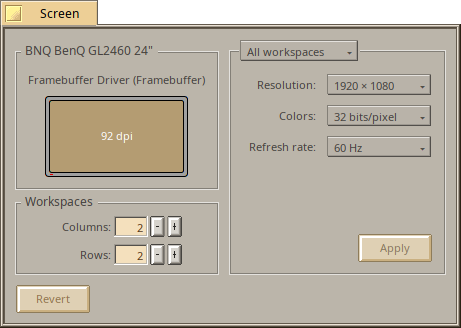
That would be great, if some one can code it up! I thought maybe it might be easier to implement multiscreen by simply mapping workspaces. Only one system doing both things, not a matrix or multiple multiple things (I guess the current issue is lack of drivers, not mappings). This Twitcher screen capture does suggest that workspaces are mapped to screens! Of course only workspaces mapped to screens would work that way, the remainder would work as they do now. The only problem I saw with this mapping was the relative position of workspaces to match screens locations.
I remember watching a BeOS promotional Video where they were using workspaces exactly as I said (but it was to keep CPU/GPU load under control from memory).
Sorry @PulkoMandy I have never seen a door on any GUI since programming a Mini Scamp in the 80s, and Googling brought up zilch. While there has been conceptual doors from what you say, I have never seen an actual door. My idea was about their implementation as a short line or strip (symbolic for a doorway) along part of a screen edge, which if you pulled the mouse cursor through it the click attached item would be dragged into the adjacent workspace, rather than just off the screen (which you said you used a lot).
It could be programmed to automatically change your screen to that workspace.
For anyone reading this thread that does not know the Xerox Alto A History of the GUI - Ars Technica
is interesting reading. It says “there were no “windows” as we know them today” and there is no mention of “doors” (It is very brief so that doesn’t mean it didn’t have them).
If anyone can shoot up a link or image of a GUI with a door as I imaged them, I would be interested to see it. I am not talking Portals. If @waddlesplash https://www.reddit.com/r/haikuOS/comments/13gm16t/how_is_haiku_supportbehaviour_for_multiple/ is able to make something work it would be brilliant.
I came across this when Dr Googling Haiku Hardware Database and was wondering if a Haiku site kept a master list of “what hardware works”. This would be very helpful, and I could enter what I have that works to it.
The BeSly database you found is the right place for that
Not exactly what you were looking for but this reminds me of my WorkspaceFlipper project. I have actually added some code to prevent the app from trying to move windows to a different workspace since that was not the purpose of the app. Without the check in place the window just vanishes into thin air when switching workspaces. I’m not sure if that feature could be added or not. It might require some workarounds to keep the window focused and moving after the workspace switch.
1 Like
Hmmmm. I expected that may be the answer  So do I just randomly post to the Hardware Discussion thread here? Does not seem optimal clogging up discussion groups when a entry form capturing details would be more elegant and effective and get more contributions. Maybe a link to the BeSly database on one Haiku Site could be added along with a How To?
This is all I found on the BeSly database after you said it was the right place
Hardwarelist
This is the BeSly hardware database for the Haiku operating system.

It contains hardware that has been tested and reported by users from our BeSly System Analysis Tool, tests from Chaotic's blog and entries from the Haiku forum. The hardware listed is sorted by manufacturer.

The hardware name, specific information about the operation of the hardware, the Haiku revision number on which it was tested and the information whether the hardware is supported by Haiku are given.

If you also have hardware (even if it is not currently available in the menus), then report it to us by email (hardware (at) besly.de) or by making an entry in the haiku forum.
I can not find Chaotic’s blog or the BeSly System Analysis Tool. I will email direct to hardware@besly.de
Edit: I did a Doctor Google and found System Analysis Tool - BeSly Haiku only . Interesting how Google finds stuff local site searches don’t. Not an easy process!
It’s in the General FAQ | Haiku Project , the last item in the hardware section.
A how-to etc. is best left to the site hosting the hw database.
1 Like
Maybe it is that Duck Duck Go is the default search engine on Iceweasel or I haven’t gotten my Haiku legs yet, but I guess I expected such a “blocking take-up” aspect of Haiku to be more prominently covered and easier to provide feedback. Noobs will try Haiku on various hardware to “see if it is workable”. To then find the FAQ, find the package, install it, figure out its use and submit based upon that FAQ seems unlikely to me. That is a lost knowledge-base update.
Not complaining as Haiku developers know the priorities. A “Please provide hardware feedback” with application and/or link built into the Haiku ISO is the best option IMHO. Actually a “drivers + hardware compatibility” category within HaikuDepot (in the first instance a link “Hardware compatibility” in HaikuDepot to Haiku Hardware Database would be great). If/when I face BeSlySAT, if it changes my contentions I will post an edit.
As an Haiku developer, I currently do not need any feedback on that scale. I need to fix things on the machines I own, and then I need highly specific feedback (with syslogs, testing nightly builds, etc) from people who write bug reports and follow up on them, or people who follow this forum closely.
The hardware database is more for users, but even then, you can roughly predict what will happen, no matter the specific hardware:
- On macqines less than 5 years old, touchpad will not work
- Audio has about a 50% chance
- Wifi and ethernet depends on FreeBSD or OpenBSD having a driver, you don’t need any testing, you just need the PCI ID of the device
- Webcam will not work
- Video may or may not work but there’s always failsafe video mode
- Anything slightly unusual such as eMMC storage will not work
- Other than that, the machine will boot in 99% of the cases and you’ll be fine
1 Like
Absolutely brilliant @Lrrr A true intuitive GUI that works brilliantly. I expected an actual door (a visual clue like in the set up window). After I finally figured out how to GIT CMake instal it was immediately active without a menu entry! I had workspaces flying left and right it was so sensitive!
I am not a programmer, or I would figure out how to take the file you are dragging with the mouse “through the door”, and some sort of “visual door graphic strip” showing the % of screen you have selected to avoid other GUI elements.
For now a work-around is to use Alt+F# (Ctrl + F# in my key mappings) while holding the window tab with your mouse. F# is F F2 F3 … function key of the workspace number you want. It is sort of half intuitive GUI - half Keyboard shortcut  You can keep dragging to where you want in the destination workspace.
I am using it as a quazi multi-monitor configuration quiet effectively. Since you only look at one monitor at once (working, not gaming) it is not too different. Until Haiku gets multi-monitor drivers it is nice.
Also given the current non-drag windows through the doorway programming, means the problem PulkoMandy raised is not an issue yet  . Longtime keyboard shortcut users will not see the point, but Noobs and phone users doing intuitive stuff will. Saying that made me think it would be cool to have the swipe side to side on my touchscreen to drag between workspaces (just like mobile phones) would be interesting
The user guide has all the info on its Workspaces and Workspaces applet pages.
3 Likes