How do I diagnose this and provide usable results back here?
For example, starting up the latest release and having USB device(s) not work. How can I show diagnostic info about the exact name(s) of the device(s) to funnel back here in a report?
Edit: I assume "Hardware Issues" here is the right track, no?
The latest release booted fine but the USB mouse does not work. I can’t use the keyboard to navigate the OS and plugging/unplugging the mouse did nothing. So the release is useless to me until I can get this mouse issue fixed. Try another mouse, you say? Well I can’t. I have set hardware dedicated for testing on my sacrificial box.
My testing box works fine with Linux & BSD Live/Installed media.
Thank you for approving my account. I look forward to contributing back what I can, even if it’s tiny amounts.
Not yet, because when the OS finishes loading, it’s frozen. The mouse does not move nor is the keyboard responsive.
Is there a point during boot when I can intervene and obtain information to report? Because once boot has completed it’s useless. I end up having to do a hard shutdown.
In this case you can use another OS, to do a report.
You need a Linux Mint pendrive for example, or external USB drive with it, it’s enough a Live edition written to it.
Linux Mint can mount BFS drives in read-only mode, so you can get the syslog file, and instead of Haiku, you can add hardware details of your machine, you just issue
lspci in Linux terminal
instead of Haiku version listdev
and use
lsusb in Linux terminal
instead of Haiku version listusb
and you can put the output text in text files,
even with redirecting outputs
lspci > ./lspci_out.txt
lsusb > ./lsusb_out.txt
The syslog files are under /boot/system/var/log directory,
but if your BFS drive/partition mounted successfully, skip the
/boot/ directory, as this is for the ‘/’ directory under Haiku and created during boot time, to mount the all available filesystems into here as it would be the ‘/’ root directory.
Of corse, that is also exists, but it has a specific rule, and not used as
the home dir. as root user basically, and /boot/ substitutes it.
This way you will find the syslog files on the mounted partition under
→ system/var/log directory.
I hope it helped to open the ticket in
Where you first register an account - I suggest to use the same as for the forum account, just with a different password ;- j
The freezing of the mouse happens after the LiveDVD inLiveDVD mode (nothing installed yet) finishes loading. The desktop is shown but the mouse is frozen and the keyboard is unresponsive and I have to shutdown the system with a hard shutdown.
I don’t know where I could get any logs for this since it happens after boot in LiveDVD mode.
I have registered for the dev site, now I just need to know where to file the ticket. (for errors pertaining to the LiveDVD/mode)
-- I can’t edit my Original Post in this thread to explain this from the get go.
Did you boot Haiku in Live DVD using an USB DVD drive by any luck?
If yes, could you try with an USB key instead to see if it goes better regarding your issue with USB mouse and keyboard ?
If it does work better, what would be interested is to reboot in Live DVD mode, let it loads up to desktop, then force restart the machine but this time in USB key, so this time you could actually access Terminal and collect your /var/log/syslog* file(s), which will contains also the syslog info from previous boot.
Plus collect the output of listdev and listusb -v commands output.
And report that on Haiku Track issue tracker website.
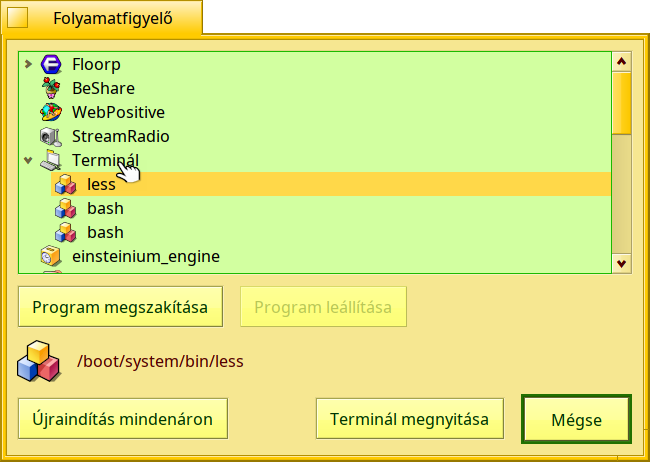
If the keycombo control+alt+del works, then you can have a chance to select the appropriate
apps from the list of the appearing ProcessDingDing (I have a translated one, and always mix its English name with other system stuff that monitors resources and can put onto Deskbar) system window, like HERE …
… and jump with Tab to Terminate app button, and may hitting Space or Enter button
do the thing for you.
It may not help, but worth a try, as I could reinitialize Haiku R1B6 TC0 in Live mode GUI, …
… but I must admit, then the mouse at least worked for me, just Deskbar was not functioning for mouse clicks -
There is a keycombo to call a Terminal window too, to use ps (to enlist the running teams aka processes and their ID for kill ) and kill(to terminate the affected teams) commands there for those services, but I forgot that combo
PS : After that kills my issue with Deskbar freeze had not happened ever again …
Of course, if it’s some USB input device (driver) issue, indeed, then my workaround won’t help sure in your case :(..