Unable to get Ultrawide Native Resolution

Good day,

So, being unable to boot on UEFI my home box (R5700G on Gigabyte Aorus B450), I touched the BIOS (enabling CSM) to be able to run Haiku in BIOS mode. In this situation, Haiku uses the VESA driver, instead of the Framebuffer one.

The display I’m using is an Ultrawide 3840x1600. I’m puzzled with the UEFI issue because I tried all the safe mode options without success, but now we are at a different stage: Try to get native resolution on that Display.

The highest resolution I can get is 2560x1440 which is 16:9 aspect ratio. That results in everything on screen wider/fatter than normal.

As commented on another threads, I tried the screenmode tool to try to get the native resolution:

screenmode 3840x1600x32
screenmode: Could not set screen mode 3840x1600x32: No such file or directory

Syslog spits that there is an aditional video mode:

KERN: Additional Video Mode (3840x1600@59Hz):
KERN: clock=395 MHz
KERN: h: (3840, 3888, 3920, 4000)
KERN: v: (1600, 1603, 1613, 1646)
KERN: size: 88 cm x 36.7 cm
KERN: border: 0 cm x 0 cm
KERN: Serial Number: 1NSXZ63
KERN: Monitor Name: DELL U3821DW
KERN: Horizontal frequency range = 30..100 kHz
KERN: Vertical frequency range = 56..76 Hz
KERN: Maximum pixel clock = 400 MHz
KERN: Extension blocks: 1

So when I boot Haiku in BIOS mode, the Haiku logo and Icons appear on screen BIG, I mean BIIIIG and FAAAT. When calling the boot manager, it says that it’s going to use 2560x1440, so icons are FAAT and BIIG.

Then, following another thread, I added the ‘vesa’ file at ~/config/settings/kernel/drivers/ with the following content:

mode 3840 1600 32

And, I still don’t get native resolution on the desktop, and trying the screenmode command on the Terminal results in same error as indicated above. Though I get native resolution on the Boot screen!?!?! Now the Haiku logo and Icons appear with the right proportions on the Boot screen. Strange? :thinking:

Is there anything else that I’m missing to get this working?

Any hints will be sincerely appreciated.

Regards,
RR
Try screenmode 3840x1600x32 59. 60 Hz probably goes just above the maximum pixel rate. But it should also appear in the Screen preferences.

If that doesn’t work, see what screenmode -l spits.

1 Like

That probably means app_server loads another driver. Try the failsafe graphics option.

Videocable HDMI or DP ?

This is a dump of the EDID data from your monitor. So, the monitor says that it supports that mode, but the VESA BIOS in your machine does nothing with that information (as usual for most VESA BIOS implementations).

Haiku can read the EDID data and show it in the syslog, but it can’t tell the VESA BIOS to use that mode, since VESA just provides a fixed videomode list to choose from, and no way to set anything else.

To access this mode, you need either to enable VESA BIOS patching, if that works on your machine, or use a native driver.

1 Like

Good day,

@madmax , that didn’t work. On Arch it works at 60Hz without issues.

> screenmode -l

does not report the ultrawide resolution. The maximum available is 2560x1440.

@nephele, I’ve tried that already, and other safe mode options. The failsafe gets the Vesa driver loaded, so still out of luck on that one.

@kim1963, I’m using DP. I have been using DP with this box since I built it. More on that later.

@PulkoMandy, I tried the BIOS patching and didn’t work. Use a native driver is out of question because there is no native AMD Radeon driver, AFAIK.

Thanks all for the tips. I’ll keep trying with new hrevs and check combinations… patience.

I’m thinking that this might be related to the MOBO. This box is an update. I started with an MSI B350M Mortar and the Ryzen 1600, then changed to the Gigabyte AORUS B450I and the Ryzen 1600, then updated the processor. Before, with the B350M I could use UltraWide resolution with the Framebuffer driver on UEFI mode boot. Now I can’t boot on UEFI mode, so no way to load the Framebuffer driver, which seemed to be able to use UW resolutions. The VESA driver is stuck with 4:3 ratios.

Thus, a question arise:

  • Can I force the Framebuffer driver to load on BIOS mode, instead of the VESA?
  • If YES, how?

I presume that if I can get this box boot on UEFI mode again, Framebuffer driver will be loaded by default, and will get the UW resolution & aspect ratio. Is this Correct?

Again, thanks everyone for your assistance.

Regards,
RR

1 Like

No, that driver relies on the EFI firmware to set the video mode, just like the VESA one relies on the BIOS.

There is radeon_hd, but it may need some work to support the newest generations of cards.

Yes, that should work.

3 Likes

Good day,

So, calming down, using proper glasses and taking a look back at what was happening here I found out that the BIOS only boots in 2560x1440, as that is the reported resolution by the BIOS when the computer is powered on. Linux changes resolution after boot, but Haiku keeps the resolution all the way to the desktop. As I can’t get this machine to boot in UEFI yet, 2560x1440 is not usable as everything is distorted (too fat and short), I found a compromise at the moment with the available resolution 2560×1080 , which keeps aspect ratio though a bit on the blurry side.

A question arises here: Does the BOOTX54.EFI file get updated with new releases?

Because we know when packages get updated (checking SoftwareUpdater or with pkgman), but there is no way, that I know of, to know if a new version of BOOTX64.EFI is released.

Thanks in advance,
Regards,
RR

No it doesn’t. It is very difficult to guess where is the ESP partition that you’re using to boot Haiku. You can have an ESP partition per drive but also on removable media. So, until a solution is found, you have to copy the file manually the first time but also each time that you want to update it. Despite the fact that the loader is built every time Haiku is built, you usually only need to update once or two per year and only if you’re using nightly. Note that you don’t have to update it either. It will still work without doing it.
This said, if you want to experiment with it, you can find the file haiku-loader.efi in /boot/system/data/platform_loaders/ folder. Just copy it and rename it to what you need.

Good day,

Well, we got some improvement here lately, not that I got native resolution, but latest updates made the PC able to boot in UEFI mode, so now I’m getting ‘framebuffer’ driver.

~> screenmode -l
Available screen modes:
2560 1440, 32 bits, 60 Hz

~> screenmode 3840x1600x32 59
screenmode: Could not set screen mode 3840x1600x32: No such file or directory

I even tried adding a file with the screenmode printed above in the path (/boot/home/config/settings/kernel/drivers) named ‘famebuffer’ but it didn’t work.

I still can’t get native resolution, but finally I got framebuffer driver going which is what should be expected with Radeon (ryzen 5700G). Latest bootloader update allows me to boot uefi in normal mode with all services up, but native resolution.

Thanks for the good work!
Regards,
RR

1 Like

If you use the framebuffer driver setting the resolution after boot is not possible. Try setting it in the boot menu.

1 Like

Good day @nephele,

Well, setting the resolution in the boot menu is what gives me 2560x1440, as it’s the highest resolution that the bootloader gets. It doesn’t show the native 3840x1600.
If there is a way to “force” the bootloader to use the native resolution, I would try that. But for now it looks like I’m stuck on 2560x1440, as it’s the only one available in the Screen prefs too. Meaning that the aspect ratio is different (21:9 vs 16:9), thus screen content is deformed.

Regards,
RR

Good day,

Just thinking aloud, I tried both with Displayport as well as with HDMI with same result, that is no Ultrawide resolution, still max resolution is 2560x1440.

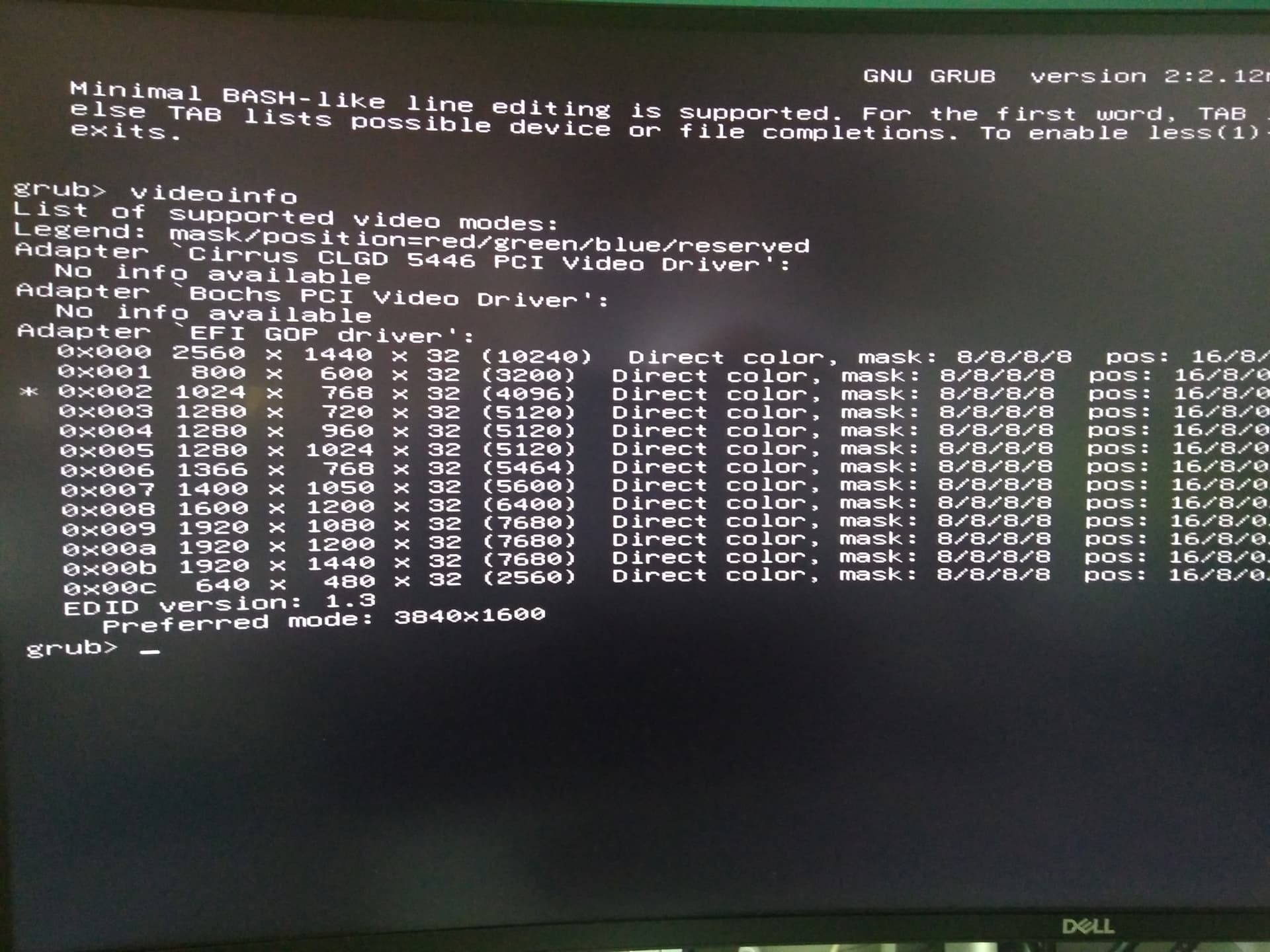
So I did more tests, checking in Grub the available video modes with this outcome:

So Grub screen (EFI GOP driver) is defaulted at 1024x768 and max resolution is 2560x1440, though preferred mode is 3840x1600.

Then I checked (from Linux) the framebuffer max resolution available:

> cat /sys/class/graphics/fb0/virtual_size 
> 3840,1600

So looks like something is going on here. Haiku sees the same modes (booting in BIOS, not UEFI) ,inside the Screen preferences, as Grub. Those modes are the same that appear in the Haiku bootloader.

Difference is that Haiku’s bootloader does not see the “preferred mode: 3840x1600”, though as soon as the system starts booting Kernel spits:

KERN: Additional Video Mode (3840x1600@59Hz):

as reported by Syslog. So both systems behave mostly the same. When Linux reaches SDDM, it jumps to 3840x1600 (X11 - I had to ditch Wayland due to lots of input issues with mouse and virtual machines). On the other hand, Haiku gets 2560x1440 when the logo appears and then goes from there up to desktop.

I’ll do more research on the topic to see if can get pass through this issue.

Is this something related with the framebuffer driver? Can I do anything to help fix this?

Thanks in advance.
Regards,
RR

1 Like

The “preferred mode” comes from your display through EDID. Haiku can read that, but if you use the VESA driver without BIOS patching, it can’t do anything with it, because that video mode is not provided by the VESA BIOS in your video card. With VESA, we can only pick from a fixed list of modes decided by the VESA BIOS and video card manufacturer.

You have two options:

  • Enable VESA BIOS patching in the kernel settings file if that works with your VESA BIOS. This patches (a RAM copy of) the BIOS, and allows to set any mode using the VESA driver as with other video drivers
  • Get a native driver working for your videocard, then Haiku will be fully in control ov the video timings.
1 Like

I think I had already replied the same thing in january. The situation has not changed, the symptoms and the problem are stil lthe same.

BIOS patching is likely still not working for you, and there is still no native driver, since not much change have happened in either of these since then.

1 Like

The linux framebuffer driver is not the same thing as our framebuffer driver. Ours will use the mode the efi bootloader has set and nothing else, setting it after system boot simply isn’t possible when using the efi driver only.

Linux in this instance has something that can do modeseting for your card, Haiku does not.

1 Like

Good day,

Well, @PulkoMandy, since January!!!.. damn, time does fly… or I’m too close to a spacetime vortex… might be the former… :thinking:

Well, regarding the ultrawide resolution, nothing, as you said, has changed, thanks @nephele for the explanation. I had to review your January post to remember. Though something has indeed changed:

  • Before I had no chance to boot in UEFI mode, only BIOS mode. BIOS mode only allows to assign a max of 2 GB to VRAM. In BIOS mode, I tried to boot the ‘EFI’ Haiku partition and always got either a soft reboot before the Haiku logo and the icons even appeared on the screen or a KDL. Always the same thing, either one of those two, regardles the safe mode options (filed a bug). Same with setting BIOS to UEFI, same soft reboot or same KDL.
  • Now I can boot just in UEFI without issues after the BIOS update as well as Haiku update, and now I know (didn’t know this before), that Haiku boot manager behaves as well as grub at detecting display resolutions, both spit out the same outcome. Which is a good thing for the Haiku bootloader.

I had to be able to boot in UEFI mode to check if Haiku detected the resolutions because, if no way to boot in UEFI mode, I had no way to verify this.

It’s true that regarding ultrawide resolution I’m stuck, but I know more now than then, thus, thanks to the Haiku team, you two too, @PulkoMandy and @nephele, I can boot in UEFI mode and don’t need to change BIOS settings everytime I boot Haiku or Arch.

Thanks again and regards,
RR

2 Likes