Hi, when I open up my people folder on Tracker, it used to show the people specific attributes like phone numbers and so on, but for some reason it doesn’t any more. Any way to get it back to normal? (I’m using the hrev57937 +129 version on a Thinkpad x230). Thank you.
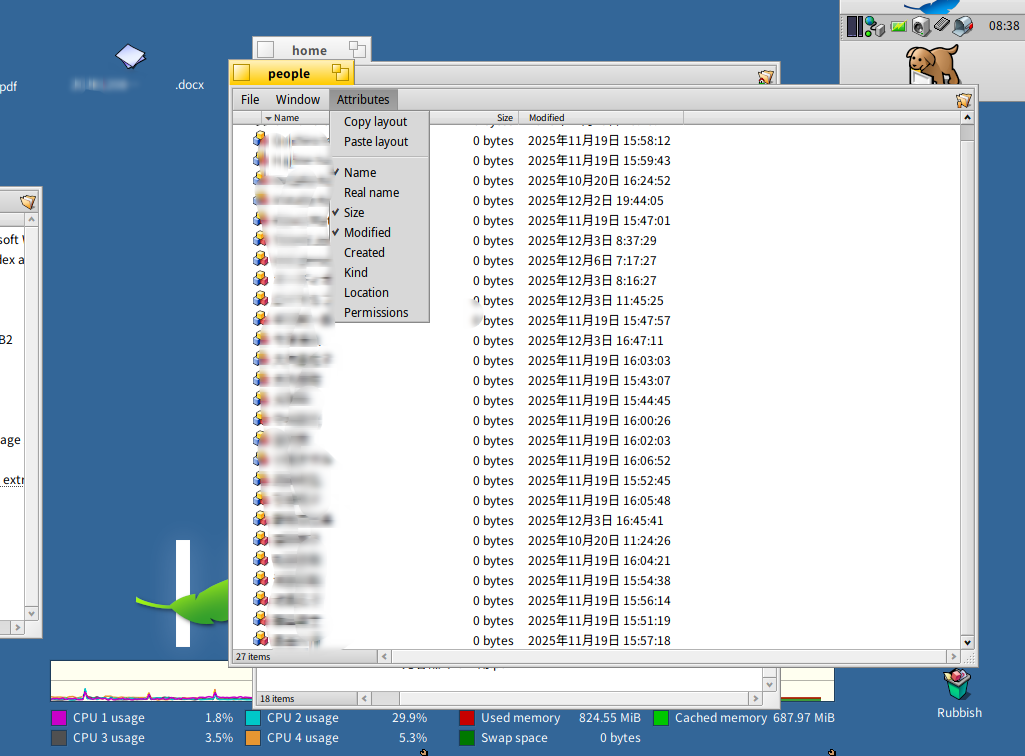
Your "People"s files aren’t showing the correct icon either, instead they looking like “Generic Be application executable” for some reason? (you may confirm what type they have by either enabling the “Kind” column, or requesting “Get info” on those files.
No clue. Maybe your mime data base got corrupted? I’d run checkfs /boot just to check things out.
Does the “Person” file type is still present if you open Preferences->FileTypes (should be under the “application” category).
Can you open the individual files with the Persons app? do they still show the correct data? (I’d also double check by using listattr <Person file> (and catattr <attribute name> <Person file>) from the command line.
Thanks for the suggested checks. I did the checkfs /boot and it was all ok. The “Person” file type was still there under the “applications” category of FileTypes. The individual files still open with the Persons app (after I set the default app for Persons files back from Mr Peeps! to the People app. I tried the listattr and the catattr commands from Terminal and found that they worked ok.
Now the interesting bit is that when I created a new Persons file by right clicking on the desktop and choosing New>Person, the newly created file had the correct icon for the filetype. I then removed all the Person files from the Person folder and placed just the newly created Person file (the one with the correct icon), rebooted the system, and presto! the correct attributes were now displayed in Tracker.
I am guessing that maybe my having tried out the non-default people apps (Mr Peeps! and DeepPeople) and switching default apps in FileTypes along the way may have corrupted my People files in some way. I guess I’ll simply have to make my People files over again, in order to keep everything working.
Once you modified default filetype associated app, try to select files and use identify. It should refresh icons and do the trick.
Holding the SHIFT key down while opening the context menu on those files should change the “Identify” menu item to: “Force Identify”. The latter should do that “refresh”, AFAIK.
No harm in trying both 
If it works, that’s a hint that could be added to Tipster.
Thanks for the suggestion. This operation did nothing as far as I can see. Same icon with the blue, red, and yellow cubes.
I tried the shift+right click > force identify on a couple of my Person files. It changed their icons to the two white sheets of paper icon (same as for “c++ header” and “c++ source”).
Interesting thing is that even though the icons are wrong, and the right click “open with” only gives me the choices “Disk Probe”, “FileTypes” and “ZipOMatic”, double clicking on the file brings up the default People app all the same.
“Force Identify” works based on the content of files. People files are usually empty, since all the data is in attributes and not in the file contents. So that won’t work.
You need to manually reset the MIME type to the right one if it became incorrect. I think you can do that with the mimeset command by giving the explicit MIME type?
I just tried:
Copied some old Person files from my BeOS days, then I:
1.- removed their types (so they show up as “Generic file”):
for f in ./Peoples-Files/*; do rmattr “BEOS:TYPE” “$f”; done
2.- Tried “Force identify”, does not helps in this case, as @PulkoMandy explains.
3.- Restored the proper type via settype (as mimeset is the CLI equivalent to identify, AFAICT, not accepting a given type):
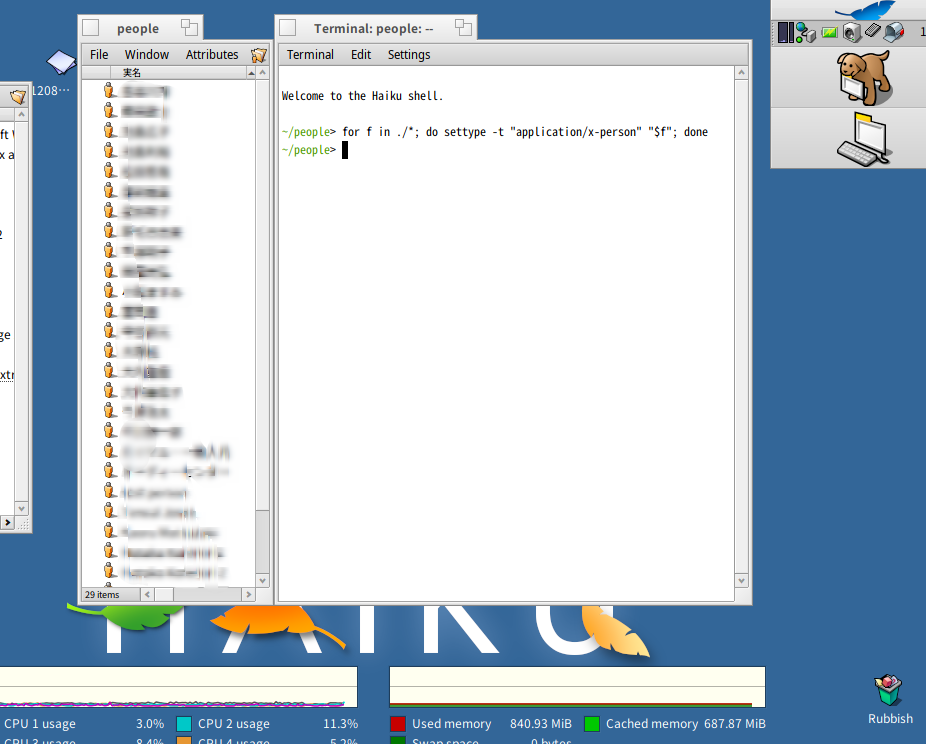
for f in ./Peoples-Files/*; do settype -t “application/x-person” “$f”; done
This last one worked fine. @chaplintokyo, I’d suggest you trying that last line (adjust the ./Peoples-Files/* path accordingly to your setup, of course).
settype -t “application/x-person” some_path/* should also work (make sure you only have Person files under that some_path folder though!.
1 Like
If you don’t like the CLI, doesn’t selecting all files, open with Add-Ons/FileType, and Select → application → Person work?