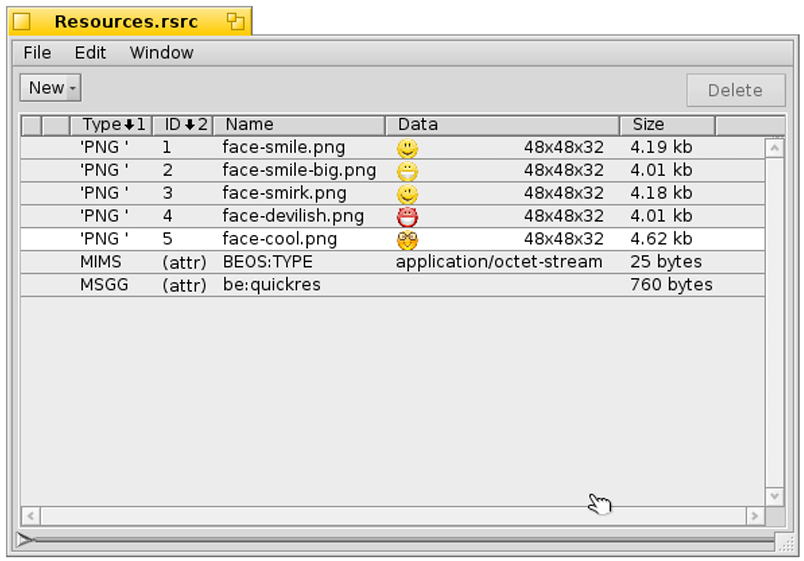
I would like to create and use a resources file with my application, but I’m facing two problems:
How to configure a PNG picture into the “.rdef” file?
A saw many examples of using ‘PNG ‘ type in the resources file, like:
—
resource(1, “builtin-tools”) #'PNG ’ array {
$“89504E470D0A1A0A0000000D494844520000022E0000001208030000004BB3A5”
<…>
$“FF17F6CF36F92F1B9E631E8B8F3FBC0000000049454E44AE426082”
};
—
So it seems possible, but please, how to convert my 24x16 PNG format image to a ‘PNG ‘ array in the “.rdef” file?
How to use the “app_info info;”?
I want to use the resources, so I copy the lines from the Haiku documentation:
—
app_info info;
be_app->GetAppInfo(&info);
BFile file(&info.ref, B_READ_ONLY);
—
But when I compile my program, I have the message:
error: aggregate ‘app_info’ has incomplete type and cannot be defined
I found another thread with this same error, but there is no solution.
Please, I forgot a library to include or an option to compile?
In advance thank you very much for your help.
Best Regards,
Hi Guys,
Thanks a lot for all your replies.
This software did the job perfectly.
Sorry if it’s advertising, but I did not know this IDE that helped me as expected to create the resources file (.rdef) with PNG images.
Many thanks again for your quick and invaluable help.
Kind Regards,
If advertisements are normal here I’d rather just spend my time elsewhere. This isn’t the first time either that random topics were pushed to “check out this cool app” as a response to specific questions. Should we do this with all Haiku apps? all ported apps? Do you think Genio completely redid the functionality? Is it a seperate implementation? What is the point of not actually answering the posed question (of how this is acomplished) and instead telling people to install complex software?
The next person who faces this Problem and searches on the forum will also not find the answer here.
The app solved the problem and the original user is happy with that. Meanwhile your reply is “we have built-in tools for that” with no hints whatsoever about where these tools are and how to find them,
One response was helpful, the other was not. I would rather keep the helpful one…
I agree with all of you and understand both opinions. Here is mine:
After searching for many days, I was very happy to be able to add PNG images in my resources file quickly and almost easily with another software. It’s great!
It’s a little like using “Icon-O-Matic” to export “.svg” files to “.rdef” format. It’s really helpful.
But on the other hand, I like to understand and create myself everything in my own program with all steps, without installing another software with many dependencies (libraries).
Yes, now I have PNG data in my resources file but I don’t know how to do it manually and how it works.
This post remains open and maybe someone else, like the Author of the suggested software, can explain and give the solution for all interested people in this forum, how to convert PNG to an array for the “rdef” file.
Thanks again to everybody for your help and every ideas, information, answers or workarounds about this subject are welcome!
For a lighter alternative, you might have a look at SVGear. If you’re looking for an hvif icon for this app, it would be a good idea to have it installed anyway.
How does that help with embedding PNG files in resource files?
I’m fine with software recommendations, but please read the initial question before suggesting unrelated tools…
You can use xres to set your PNG as a resource directly on your executable file. rdef files only make things more complicated and slower in this case.
Here are the commands I use:
    # Prepare your resources as usual (for the app version, for example):
    rc -o Resource.rsrc Resource.rdef
    # Add the resources from the rsrc file, and add any extra one straight from binary files:
    xres -o your_executable Resource.rsrc \
		-a PiNG:2:bulb-normal  resources/graphics/bulb-normal.png \
		-a PiNG:3:bulb-big     resources/graphics/bulb-big.png \
		-a VICN:4:away-online  resources/icons/away-online.hvif \
		-a VICN:5:online       resources/icons/online.hvif \
		-a VICN:6:offline      resources/icons/offline.hvif \
		-a VICN:7:unknown      resources/icons/unknown.hvif \
		-a VICN:10:preferred   resources/icons/preferred.hvif \
		-a VICN:11:home        resources/icons/home.hvif \
		-a VICN:12:work        resources/icons/work.hvif
The syntax is: -a type:id:name path/to/file
The type can be anything you want, I used PiNG here for PNG files. VICN is the standard for HVIF icons.
The ID and/or name are used to access the resources from within your code.
It’s important to add all the resources (from the rsrc file and the -a options) in one single run of xres, otherwise adding one resource may erase the previous ones.
Wow, plenty solutions in fact, nice!
Me either, I did know none of them.
I searched a long time before posting and didn’t find any documentation with examples as you described: ‘xres’ syntax with PNG or ‘import’ command directly in the “rdef” file.
They are very good answers, thank you very much masters!
It depends what you want to do with it in your app and how good you are at tracing.
If your HVIF ends up being larger than the PNG file and looks bad when scaled, it’s not very interesting to use HVIF.
In my case the PNG files are for large, detailed images that wouldn’t work as HVIF. I think I eventually removed them from my app anyway.
The only exception is for the main app icon, in that case you never know at which sizes it will be rendered (pretty much all possible sizes, depending on user settings), so HVIF is pretty much required, and also the only alternative is an uncompressed bitmap that usually takes more space than HVIF (if you do your HVIF cleanly, it should be less than 1280 bytes which is the size of the 32x32 bitmap icon + 16x16 bitmap icon as was used in BeOS).