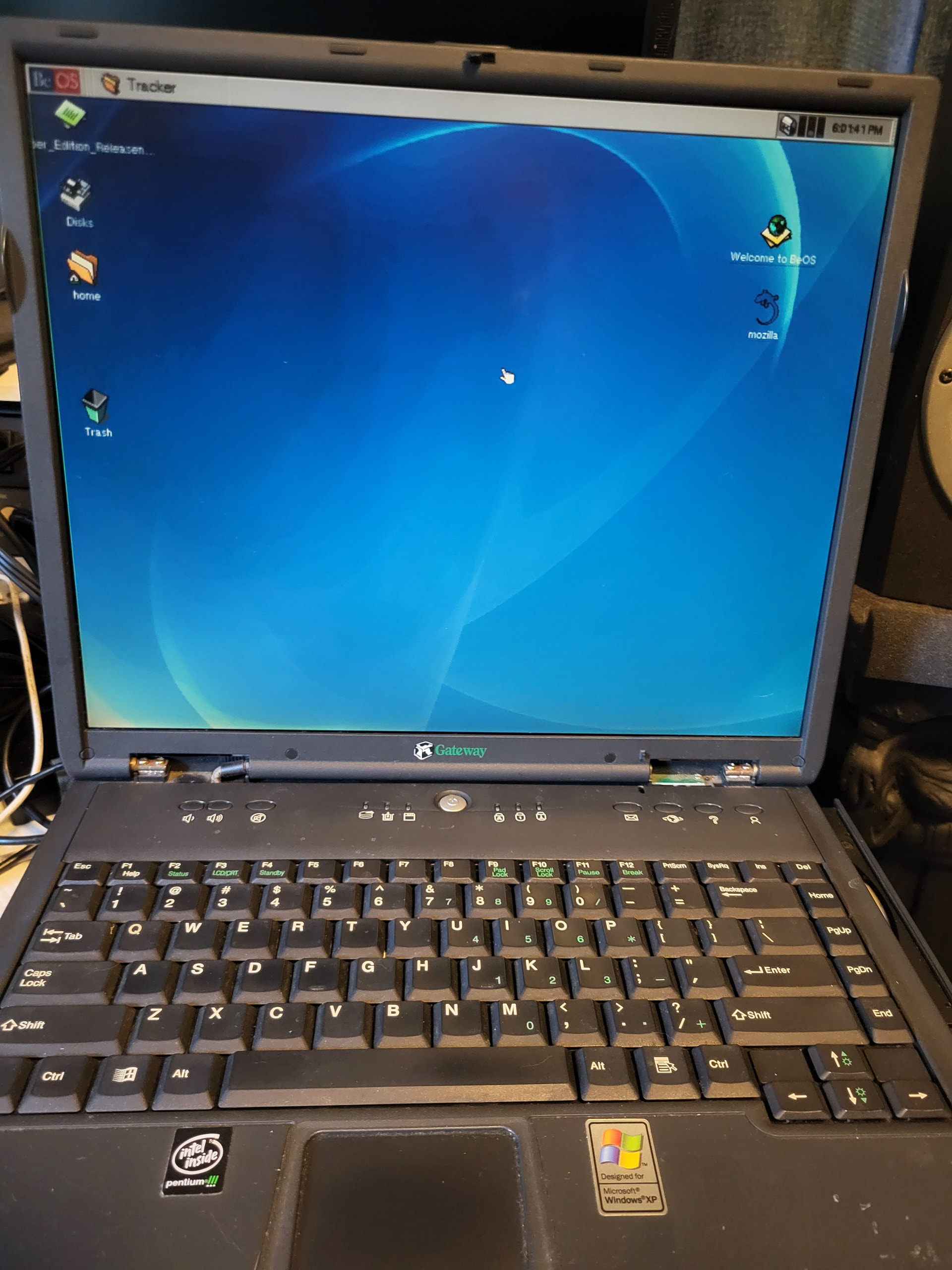
My retro laptop project. A Gateway Solo 9550. PIII 1133Mhz, 256 MB RAM (may upgrade to 512 MB later if it doesn’t present any system instabilities). I was just about getting ready to give up on getting R5 loaded, kept getting read errors after install, but I tried one more BIOS setting and I am in.
I’m always surprised, in a positive way, how similar Haiku vector icons succeed to looks like the BeOS ones while still having a more polished and subtly distinct look.
You need to install Win98SE and Windows XP first because they will overwrite the boot loader. (Maybe you’ve discovered this already ) Then after installing BeOS again run BootMan to install the BeOS boot manager. It will also display your windows installs so it’s the only boot manager you will need.
As far as RAM, up to a gig is fine. Some hardware gives trouble at a gig, so if you experience that, you can back it off to 512 or 768.
Cheers! Nice to see someone else actually has a live real hardware system still running out there.
Can’t you just start the BeOS bootloader from CD and boot into the already installed BeOS? And then install BootMan from there?
Or ist it possible to chainload BeOS from the Windows98 boot menu?
I’m just curious. I have next to no experience with BeOS, but I installed a lot of multiboot setups back in the day with Windows 98, Windows NT 4 and Linux (and sometimes OS/2 but that’s another story)
It was recommended to install Win98 first, as the installer really doesn’t play nice with other OSs. But I ran into issues with the CD not loading. So, I am going to try a workaround. Supposedly I can copy the files from the Windows CD over directly to the partition from BeOS, then use BeOS to make it bootable and add it to bootman, and it will boot into DOS and allow me to complete the install. So hopefully this method will work, because it may be my only chance at getting Win98 on this bare metal machine. As for XP, yes, it will overwrite MBR, but you can use the install CD to boot the main OS, or I can also create a boot floppy to get me back to BeOS and reinstall bootman.
You can load BeOS from DOS (start Win98 in DOS mode) with the loadbeos.com utility that comes with the Personal Edition (C:\BEOS\loadbeos.comafter installation), or perhaps on the boot diskette too if you created a boot floppy during installation.
Ran into an issue with the install Win98SE from BeOS method I described. It’s all hinged on makebootable working and I am getting the following error message, “makebootable: error writing boot block information to /dev/disk/ide/ata/0/master/0/0_0”. Any ideas?
Is that your BeOS system partition? makebootable only works on BFS partitions. But you don’t need to run makebootable if your system was already bootable. It just writes boot code into the PBR (the BeOS partition’s partition boot record), so the loader in the MBR can chainload it. You only need that if you just formatted a fresh BFS disk manually and want to copy system files to it and use it as a boot partition. If you have a working BeOS system, your partition is already bootable. Even if you installed Win98 and it ovwewrote the MBR, the PBR is still intact. You just need to find a way to restore the original MBR.
To make the FAT partition bootable, you need to format it from DOS with format /s. If you really can’t boot from the Win98 setup disk, maybe you can create a bootable USB with freedos or something, and try booting from that. Once in DOS, you can format the partiton. Format won’t harm your MBR, so you can restart into BeOS, copy the windows setup files from the CD to your FAT partition into a folder, for example WININST. Then reboot into DOS with the USB, and run SETUP.EXE from the WININST directory.
It’s a cool little setup you’ve got planned there, personally I’d be tempted to put Haiku in there as well, 256 megs or ram might be a bit tight but other than that Haiku should run fine (and perhaps help with the Win98 issues and multi-boot setup)
Then again, if you managed to install BeOS from the same CD drive Win98 hangs in it’s likely the Win98 CD itself has gone bad.
I will try 512MB ram as soon as everything is set up. I know BeOS can handle it, I am just worried about Win98 - 512MB RAM plust the video card memory could make Win98 non-bootable, but there is most likely a patch for that, maybe in SP3. I ended up having to remove the BeOS partition temporarily. Win98 will not load and install unless it has the entire drive. Between getting BeOS installed the first time and now having success with Win98, I must have restarted this machine over 100 times.
Of course Netsurf can be installed, as a workaround, but that lack the java stuff … so your browsing experience will be limited, this way I do not see installing Haiku 32 bit how would extend this PC usability.
But I may wrong .. especially if the goal is not the usability, but having fun !
Yeah, that was the original suggestion, but I couldn’t get Win98SE to even boot at first, so I thought it might work to do BeOS first. The real problem on this system seems to be that WIN98 needed to format and install to the entire 64GB drive, or else it would throw errors or just not recognize the hard drive properly. I will install XP next, and then back to BeOS. I have another 32-bit Duo Centrino that I am using for Haiku, as well as a 64-bit HP Elite 8000.
For a while, everytime I saw someone throwing out an old computer I would grab it and try installing BeOS on it. Some successes some failures, but it was fun little hobby. The older of the machines I would put R4, R4.5 on. Even got R3 to make it to the boot menu on one! (but that was as far as it got ) Eventually I bought a motherboard with a quad core pentium that BeOS supported with a gig of ram, a supported sound card and video card, and now thats my Dedicated BeBox. (except that its not a box at all, it has no case! Just a motherboard on a crate!
 ) Then after installing BeOS again run BootMan to install the BeOS boot manager. It will also display your windows installs so it’s the only boot manager you will need.


