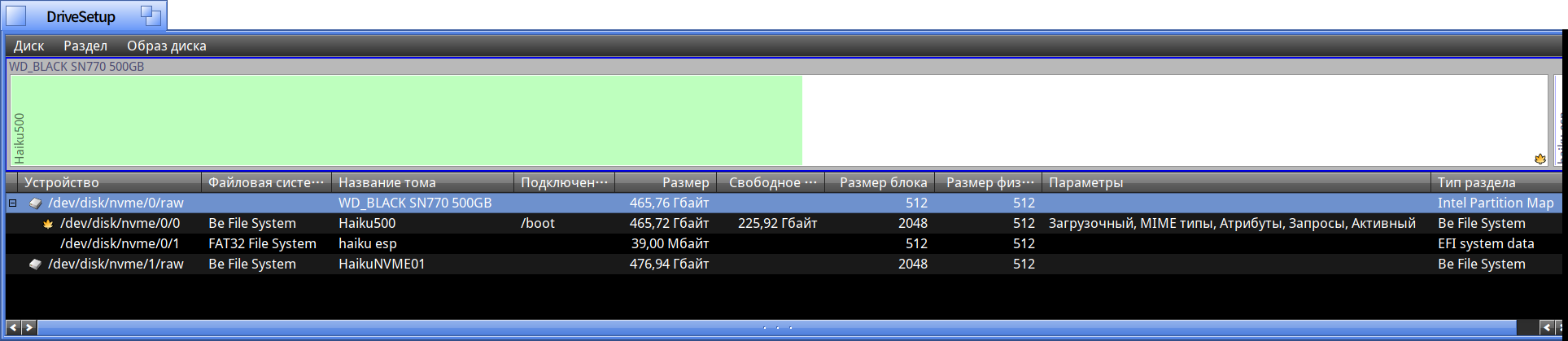
Hello! I am trying to install Haiku R1/Beta6 natively on a laptop with a KINGSTON SA400S37960G SSD.
I booted via a 64-bit UEFI Live USB drive. When I open DriveSetup to partition the SSD, it initially appears as “Raw”. After I initialize it to “GUID Partition Table (GPT)”, any attempt to use “Partition → Create” drops it back to “Unknown (GPT)”. Instead of creating my requested partitions, DriveSetup incorrectly splits the drive space into two raw unpartitioned blocks: one around 223 GB and another around 670 GB. The partition table just refuses to stick and resets itself.
I also tried running “writembr /dev/disk/scsi/0/4/0/raw” and “installer --copy-boot-files” from the Terminal, but they fail because the kernel keeps locking or misinterpreting the disk’s geometry.
How can I force Haiku to correctly write the GPT metadata and create a 100 MB FAT32 ESP along with a BFS partition on this specific Kingston drive? Thank you!
The SSD is connected natively and directly inside the laptop via the internal SATA interface (no USB adapters or caddies used).
I am launching DriveSetup directly from the Terminal now to capture the underlying log messages and errors when trying to write the GPT partition table. I will check the terminal output for any kernel block errors.