[Bootman SOLVED] Legacy BIOS boot for Haiku x86_64 - where as no UEFI firmware but only BIOS

Ahoy devs,

I have a DELL Precision M6400 workstation laptop

with an Intel Core2 Extreme QuadCore QX9300 CPU

which is a 64bit processor. This laptop has 16.00 GB DDR3 installed.

It should run Haiku 64 bit efficiently.

However I could not boot the Haiku 64 bit R1Beta5 anyboot image on this machine, as there is no UEFI firmware but Legacy BIOS.

I checked then the Haiku x86_64 requirements regarding CPU

RECOMMENDED (64-bit)

  • Processor: Intel Core i3; AMD Phenom II

As it just recommended I supposed to not impossible to use this CPU family just before Core iX ones to boot/run Haiku 64 on them.

However the existing bootloader option - lacking a UEFI ROM, so EFI boot option - makes it impossible to even boot the installer.

I just read 2 times on the forum that someone booted 64 bit Haiku in BIOS mode .. however none of them explained : how ?

There’s no instruction how to pimp your anyboot ISO to enable BIOS boot for 64 bit Haiku - at least I had not found that.

I know , there is a way to use GRUB to load Haiku, but that is not simple process –

I should install Grub or have a drive where a Linux distro is already installed, and then somehow should get an installed Haiku partition. Do I need to do the install from an existing / running 64 bit Haiku (an EFI capable machine ) ? If I do so, then I need also a Linux to install only a Grub bootloader onto a separate smaller partition ?

Or Haiku Bootman bootmanager would do the trick ? As I just found Bootman as recently I checked the Installer’s Menu in the 32 bit installer… and annoyed as installed one was not bootable - I installed the Bootman and then Voilà! I could boot it finally…

So what is the solution ?

Just do I open an enhancement ticket to make it possible

to boot anyboot installer on 64 bit capable CPU systems where only BIOS available ?
1 Like

UEFI Booting the Anyboot Image

Haiku also supports booting via the traditional BIOS boot system. See the regular install instructions if your hardware requires a BIOS boot process. Use the instructions on this page should your hardware require a UEFI boot process. The instructions are somewhat manual at the present time (R1/beta5), but should be enhanced with a more guided process in the future.

Ahoy,

As I wrote above I had not found instructions …

Have you tried out this before you suggested these pages ? I’ve read them before.

I know the details in theory well - this way mentioned the same in the last sentences. Here there’s no exact steps just hints. The links goes to wiki and official documents.

Welcome to the Haiku installation guide! This document will help you install Haiku on your computer, guiding you through the Haiku installation one step at a time. Depending on your hardware configuration, the installation process can take ony a few minutes.

Preparing a Partition for Haiku

Currently, Haiku cannot resize existing partitions; therefore, you either need to already have an empty partition where you can install Haiku, or you need to create one using a third party tool. If your current OS comes with a partitioning tool, try to use that. Otherwise, you can use specialized tools like the freely available GParted LiveCD. A standard 32-bit install of Haiku requires about 1.3 GiB of disk space (64-bit install is about double), so the partition doesn’t need to be huge. However, you may want to leave some room for 3rd party applications, so 3+ GiB is the recommended partition size.

Whenever your disk has multiple partitions, you will also need a boot loader such as GRUB to be able to boot into Haiku (and any other systems that you may have installed in the remaining partitions). In some cases, it is also possible to use the Haiku Boot Manager.

The issue is exactly the anyboot installer itself - neither the R1B5 DVD nor the USB thumbdrive - does not boot directly. So I must use another machine to install or create an installer somehow.

BIOS-only boot is definitely possible, and yes, you can use Bootman directly for that without needing GRUB and similar, I’d even recommend it if you’re not dual-booting anything there.

I have a BIOS-only Athlon II pc (which is below the recommended Phenom II) that uses DDR3 and it boots Haiku no problem. I’ve successfully booted and installed Haiku from USB on DDR2 Athlon IIs and even on a PIII-era Celeron.

As far as I remember it’s just a matter of using the Installer and then adding Bootman to the MBR, but I don’t remember if the option is in the Installer or in DriveSetup.

Check the BIOS settings, USB boot may be disabled.

Sorry but the Haiku 32 bit installer boots on the same machine – both USB and DVD.

I assume as there is bios ia 32 bootloader present there :j

1 Like

for the usb, which tool you used to flash it?

I am seeing two methods here:

  1. dd terminal command for linux : dd if=the/path/to/your/unpacked/haiku-anyboot.iso of=/dev/disk/usb/[x]/0/raw bs=1M

  2. using **Etcher
    **
    maybe the 64 bit is causing issue due to GPT formate and 32 is taken as MBR so it booted easily

The latest x86_64 night anyboot ISO image (hrev59558) does boot in legacy mode when copied to a USB stick, I have just tried it with my i7-4790k based desktop. I have also successfully booted 64 bit nightly images in the past using legacy mode on a Core2 Duo based laptop so should be possible.

Do you get any messages when trying to boot or does it not do anything? I used gnome-disk-utility’s ‘Restore Disk Image’ to copy the ISO image to the USB stick when I tested and it worked fine.

1 Like

It is not about USB writing issue, as I used the same thumbdrive I use for other machine, as I use Haiku from USB.

It just never boots as that x86_64 basically for EFI boot, just as 64bit bootloader is EFI type.

I get a flashing cursor and never start booting, there’s no splash screen and so on … just the same for the DVD. So no USB creation problem. I had such one also, for me generally the dd option worked, but right now the Balena Etcher worked for the 32 bit too.

However, as I wrote I used the usual one Haiku 64 bit with DOS partition map, EFI partition and so on.

I had not wanted to install Nightly for this, I just wanted to know how to possible.

I will try out to setup Bootman on the Nightly thumbdrive and will see, what happens.

Without Haiku Bootman installed on the USB drive, I got only a flashing cursor.

I installed Bootman on my main 64 bit Nightly USB thumbdrive, as I cannot do with the DVD, and then now finally I got a menu , where I had the EFI partition and the 64 bit Nightly as I configured at Bootman install.

Bootman can be installed from the Installer - this is at the one and only menu item

at me it is ‘Eszközök’ so possibly you can find as ‘Devices’ or as it is translated to your language.

I written this on Linux, on the affected machine I have in 64 bit Nightly with my main USB thumdrive. Now I will install Bootman onto my previous half capacity Haiku drives, that will be used in this Core2 Extreme.

So it is solved – the answer is Haiku Bootmanager : Bootman.

It should have written, indeed, if so simple.
It also solves not booting other USB thumbdrives.

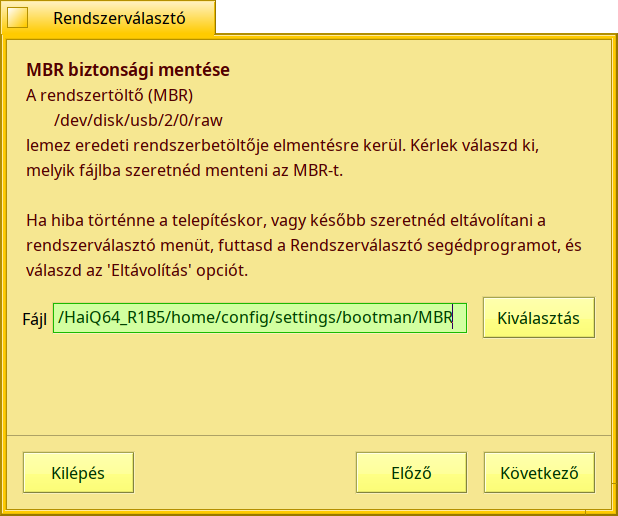
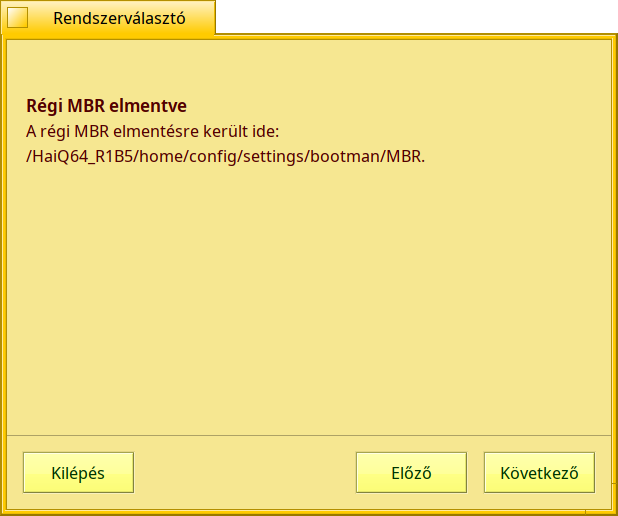
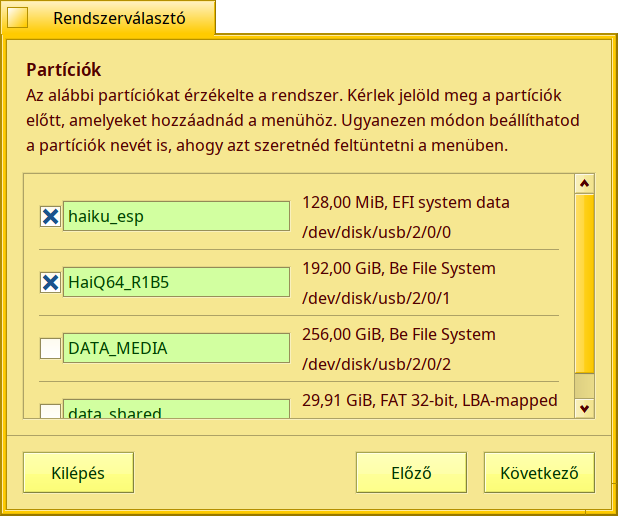
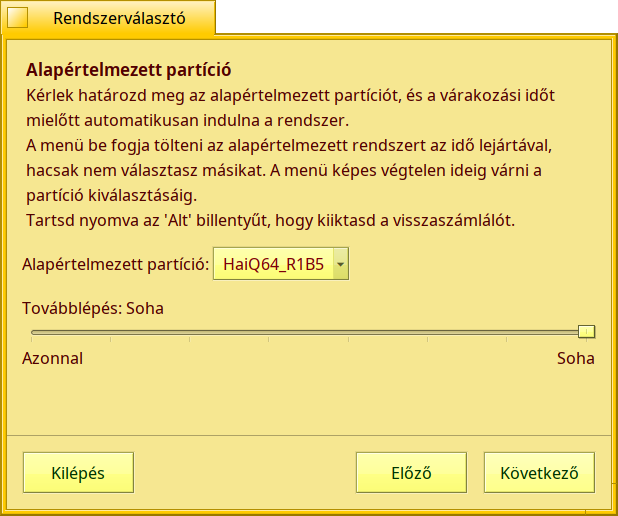
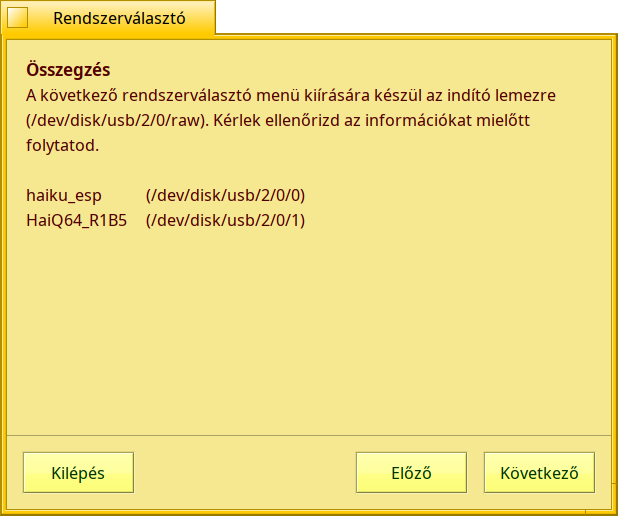
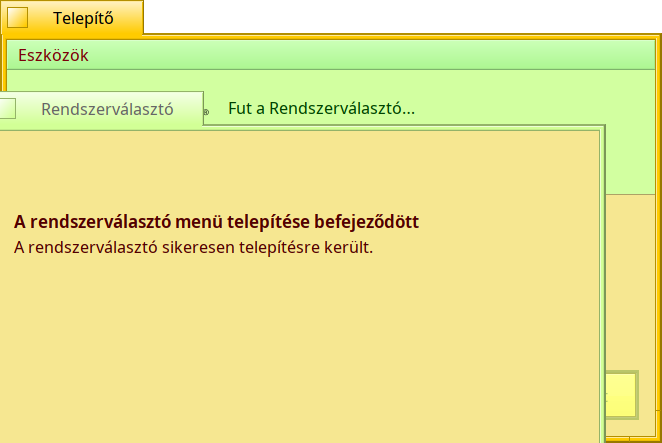
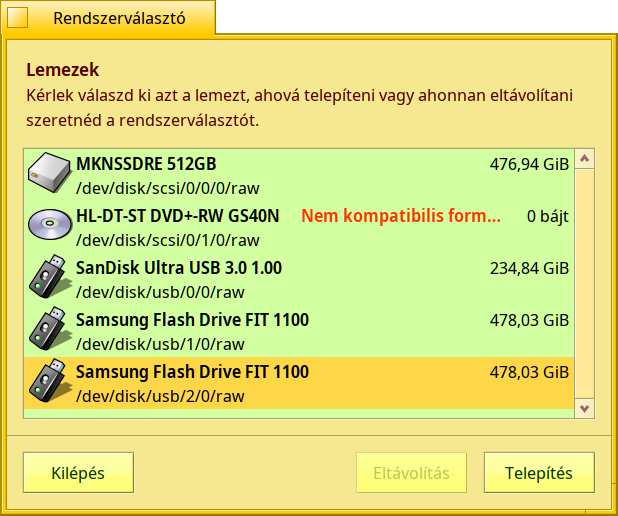
Bootman install - using Installer –> ‘Devices’ menu –> ‘Setup Boot Menu’ option (the first one)

It is re-translated from Hungarian, but the pictures say for themselves …

I deselected from default /boot/home/config/settings/bootman/MBR

which is the system from where I modify the another Haiku instance’s storage device, so it is obvious the backup must be on the affected device. At least for me - I may be wrong. :cowboy_hat_face:

Click on ‘Done’ or what button means “Finished” and then it is done.

Now I have 2 additional drive to set Bootman up … So

Tschüs ! :cowboy_hat_face:

2 Likes

BIOS Boot should Just work, the tricky systems are the one which only support 32 bit Uefi, even when the CPU supports 64 bit