A couple of days ago I managed to solve the problem of testing with Haiku on my laptop. There I can not install Haiku using USB since Haiku then always gets stuck at booting before lighting up the first icon. So I installed it in a VirtualBox image. This somehow worked but with very small resolution and mouse capturing problems. Now I figured I could install Haiku from inside the VM onto a real partition mounted into the VM. This worked and now I can boot into Haiku on a real partition… sort of. And that’s what this post is all about.
When I try to boot into Haiku I get shown the boot selection screen telling me no boot volume could be found. I then have to manually select the boot volume and state. But when I boot then I get the same small screen as in the original VM image. In the boot screen after manually selecting the boot volume I then also have to manually select the screen resolution (actually re-selecting the highest one which is already selected). Only if I manually select both, boot volume and resolution, then I can successfully boot into Haiku with the full resolution (4k on my laptop).
So the questions are now these:
How can I fix Haiku not automatically detecting my boot volume?
How can I fix Haiku not automatically using the highest resolution?
I guess the problem stems from using the Haiku Installer from inside the VM to install the VM partition content to the metal partition content. But it has been the only way to get it working in the first place.
No, the EFI is on the boot partition. And concerning the VESA settings files there is only kernel/driver/vesa and the content I changed to read “mode 3840 2160 32”. Before it had been the VM resolution. Not sure if this is connected but the Screen settings application shows “Framebuffer Driver” and “Resolution” combobox is empty (except the size which I entered in the settings file).
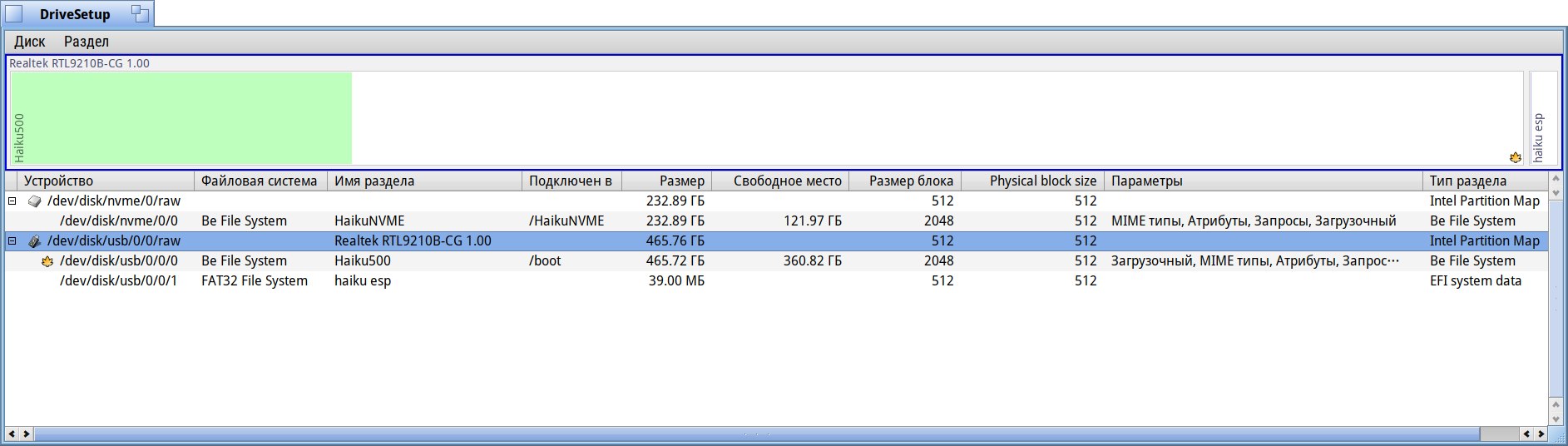
Is that the partition type or the filesystem type? These are two different things, in the current version of DriâeSetup you have to scroll to the right to see the partition type.