This is the very first time I try to run my Xerox Phaser 3140.
Guys, what is the current state of Haiku’s printing system? Is it CUPS underneath?
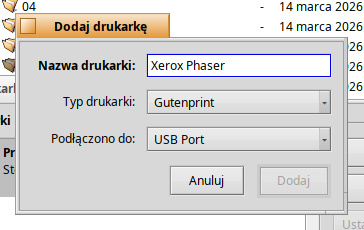
How to enable the “Add” button?
This is the very first time I try to run my Xerox Phaser 3140.
Guys, what is the current state of Haiku’s printing system? Is it CUPS underneath?
How to enable the “Add” button?
It’s not CUPS, but for old printers, Gutenprint could do it.
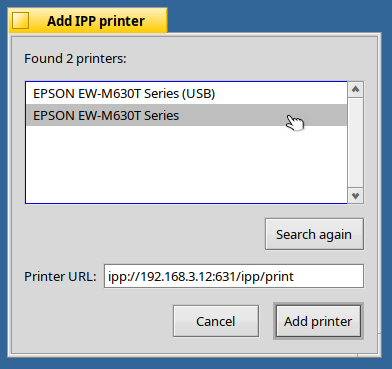
For more recent printers, well, there is a third party support for driverless printing IPP Everywhere / AirPrint, see the topic:
CUPS was initially not integrated into Haiku as it was a huge program including its own spooler, job sequencing, etc, which are all already in Haiku. It even came with its own built-in server for its http admin interface.
If I am not mistaken, over the year it has been split into modules, so maybe something worth revisiting to check if only the necessary parts can be used?
We already support IP printing… just not the discovery. Not sure what the point is in installing a third party service that also does not do auto discovery
Gutenprint is the current option as well as other options from the GUI. Talk dev about USB connect printers as they are improving it in the nightly builds so make a ticket if you want dev help.
IPP works good on most printers, historically USB was/is hit-miss with some features on certain printers.
See: print_server
Unfortunately, the Xerox Phaser 3140 does not seem to support IPP Everywhere, so it will not work with my IPP Everywhere driver that @phoudoin linked to (thank you @phoudoin !).
In your case, the closest would be to use the Gutenprint driver and try selecting Xerox Phaser 3160N. Just a guess though, so don’t hold me to it. 
A couple of clarifications:
My IPP Everywhere driver + IPP transport does in fact have auto discovery, which works both over the network and USB.
Second, Haiku does not seem to support IPP Everywhere (correct me if I am wrong). At least, I could not find any way to add my Epson EW-M630TW printer.
That being the case, my driver+transport combination can fill a gap for many users whose printers are not supported by Haiku. 
Currently Haiku:
Thank you for clarifying @phoudoin !
This is not auto discovery, as it is missing the “auto” part. On Linux, Windows and Macos you can click “Print” and then select your printer without ever having fiddled with the print dialog, that is what I mean by autodiscovery. Having to go through this dialog and painfully selecting the “correct” three options and then seeing a discovery window is not really ideal
I did not know it is not necessary to add your printers in Linux/Windows/MacOS. Real plug-and-play?
You are misrepresenting how this driver is exposed in the UI.
Adding a printer is exactly the same as any other Haiku driver. Enter printer name, pickp “Printer type:” and “Connected to:”, and click add. This is exactly the same as any other Haiku printer driver. So there is no additional fiddling whatsoever as you claim.
The one and only additional window this driver displays is to allow the user to select the printer they want to use (in case there are multiple printers available on the network or USB), and the raster type (when both PWG and URF are available).
This is useful, and needless to say, much better than not being able to use your printer. That is painful.
I never said additional fidling. The UI just sucks. No matter if you add your printer driver or any other. But the end effect is the same, you do not get discovered network printers without major intervention
Well, no clue for USB printers, but in Ubuntu I didn’t even manage to delete network discovered printers. They would keep around foever without having configured them (particularily painfull if you publish your USB printer over the network on Ubuntu, as in that version there were now two printers in the UI)
Why are you insulting the software developer? Your rudeness is crossing all bounds.
I don’t think this comment was related to @ilfelice 's driver but to the current printer UI in general. True Plug 'n Play (like Windows does and CUPS does aswell (though you can disable it)) would probably feel pretty clunky with the current UI
As you can see in the picture of the most top message Gutenprint seems to not work at all.
But I’m not able to save it becase the “Add” button remains inactive.
The USB Port option has a sub-menu with the available printers found connected on the bus. I don’t have a USB printer to test it, but I think you need to select the specific printer from the sub-menu in order to activate the Add button, not the USB Port option itself.
The name is free, you can enter whatever you want, it’s actually just the name of the local printing queue.
the print driver has to be selected, and depending on which one you select, it can open now, or only later, on first print attempt, a dialog to complete some configuration.
selecting USB port is not enough, if your printer is currently connected in USB, its name should be available to select in the USB port > sub-menu. Select your printer in that submenu.
Then it should allow you to click on Add.
I’m saying this hours too late, and in the meantime we’ve figured out that there is currently no support in Haiku that could make this printer works locally.
But if someone else find this little explanation usefull…
The printing kit is poor, and ironically it was also the case during BeOS era, so we succeed  to reproduce what Be Inc. did on that very topic.
More seriously, the printing kit needs loves for sure…
Save as PDF should/could be standard until some developer with love will look into the printing kit!
I for myself print my color printings outside (Print Shop)
My b/w Laserprinter has PCL 6 so it works! Even not in the Gutenberg list!
Brother HL1430 (almost 23 years old)
Whoops…ahhhh Gutenprint…not this time…
Two things:
Normally, the USB connection works - but not in all cases. I usually use Wifi/direct Ethernet connectivity for Haiku setups. Avoids certain current USB printer/scanner issue
Some info about this EOL printer:
It seems that CUPS had/has a filter “rastertosamsungspl” for it.
But that filter/driver for Linux was put offline by Xerox.
Some archives seems to be still available.
Anyway. The point is: this printer is NOT a PCL printer. It use a now defunct proprietary print language called SPL, for Samsung Print(ing/er) Language.
And AFAICT it has only an USB port, so any networking option will involve another machine acting as a print server for that printer.